Cursor vs GitHub Copilot: Which AI Coding Tool Is Better for You? (2026)
Cursor vs GitHub Copilot compared: editor experience, agents, customisation, verified pricing, strengths, limitations and which AI coding tool fits your workflow.
By Harsh Thummar 12–14 min read
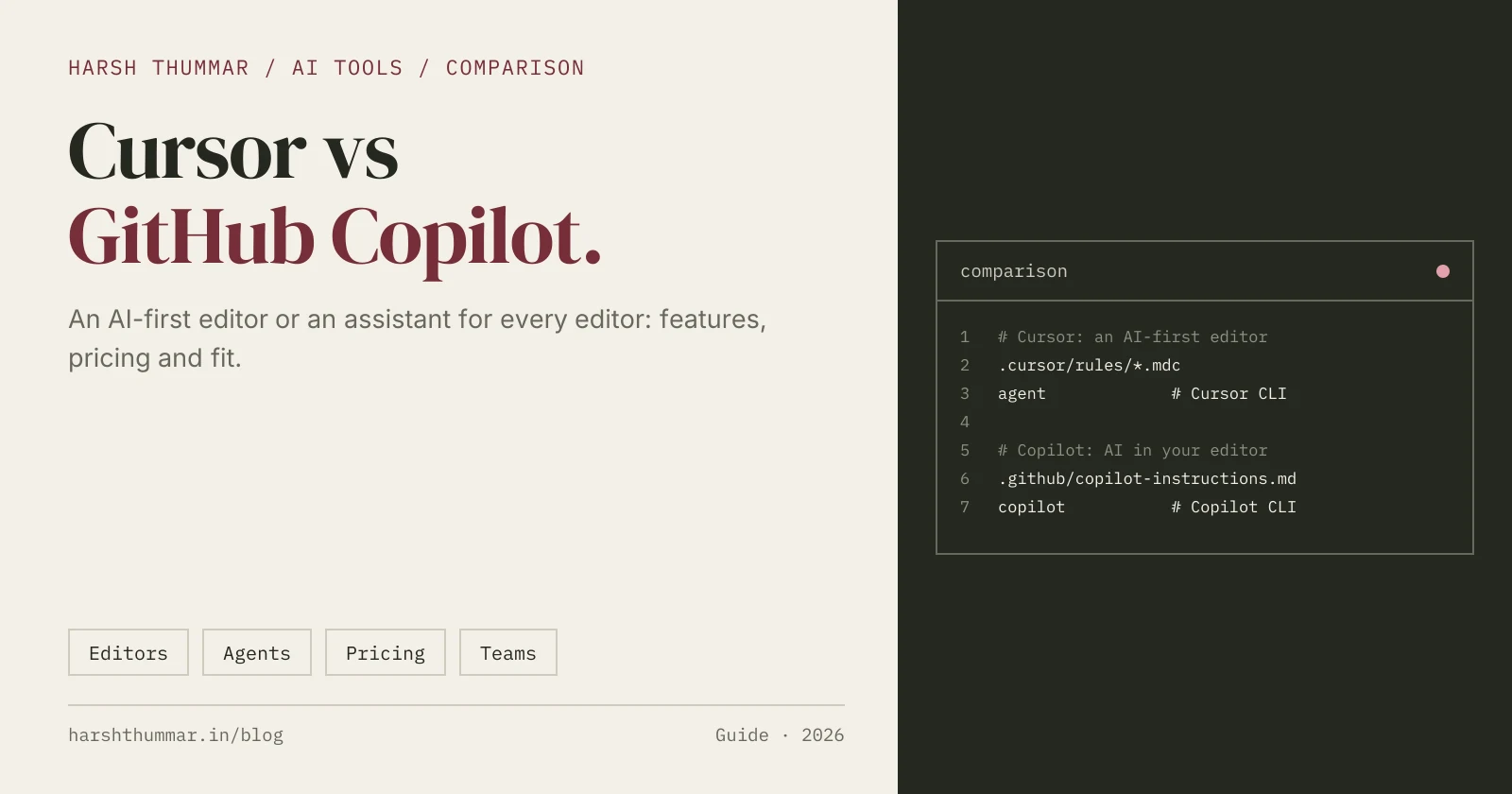
Cursor and GitHub Copilot are the two most common ways developers bring AI into their editor. They solve a similar problem from opposite directions: Cursor is an AI-first code editor you switch to, while GitHub Copilot is an AI assistant that plugs into the editors and tools you already use, including GitHub itself.
This article compares them on what actually matters day to day: editor experience, agents, customisation, team fit and price. It does not crown a universal winner, because the right choice depends on your editor, your team and where your code lives.
How to read this article: features and prices come from Cursor's and GitHub's official websites and documentation, last verified on 22 October 2026. Plans change often, so confirm on the official pages linked at the end. Where I give an opinion, I say so. I have not run formal benchmarks, so I make no claims about which one writes better code.
Quick profiles: Cursor and GitHub Copilot in my AI tools directory.
Quick Comparison
| Cursor | GitHub Copilot | |
|---|---|---|
| What it is | A standalone AI code editor built on the VS Code foundation | An AI assistant for many editors, the CLI and GitHub |
| Made by | Anysphere | GitHub |
| Editors | Cursor itself (Windows, macOS, Linux) | VS Code, Visual Studio, JetBrains IDEs, Xcode, Eclipse |
| Free plan | Yes, limited agent and chat requests | Yes, 2,000 completions per month |
| Entry paid plan | Plus, $8/month | Pro, $10/month |
| Team plan | Teams, from $30/user/month | Business, $19/user/month |
| Project rules | .cursor/rules/*.mdc and AGENTS.md | .github/copilot-instructions.md, .instructions.md files and AGENTS.md |
| Terminal agent | Cursor CLI (agent) | Copilot CLI (copilot) |
| Work from GitHub issues | Not its focus | Yes, assign issues to the Copilot cloud agent |
| MCP | Yes, .cursor/mcp.json | Supported in VS Code (configure per editor) |
What Is Cursor?
Cursor is a code editor from Anysphere with AI built into every part of it. Because it is built on the same foundation as VS Code, it feels familiar and can import your VS Code extensions, themes, settings and keybindings in one step. One difference to know: extensions come from the Open VSX registry rather than the Visual Studio Marketplace, so a few Microsoft-only extensions may be missing.
The main AI features are:
- Tab completion that predicts multi-line edits and your next cursor position.
- Inline edit (
Cmd/Ctrl+K) for quick, local changes. - The agent in the side panel (
Cmd/Ctrl+I), which can change many files, run terminal commands and fix errors. - Rules in
.cursor/rulesand AGENTS.md to teach it your conventions. - MCP servers and a CLI (
agent) for terminal and CI use.
Full setup: Cursor AI code editor setup guide.
What Is GitHub Copilot?
GitHub Copilot is GitHub's AI assistant. Instead of replacing your editor, it adds AI to the ones you use: VS Code, Visual Studio, JetBrains IDEs, Xcode and Eclipse. It also works in the terminal through the Copilot CLI and on GitHub.com.
The main features are:
- Inline completions as you type.
- Chat with agents in the editor, including an Agent for multi-file changes and a Plan agent for working out an approach first.
- Custom instructions in
.github/copilot-instructions.mdand path-specific.instructions.mdfiles, plus AGENTS.md. - The Copilot cloud agent (formerly the coding agent): assign a GitHub issue to Copilot and it opens a pull request.
- Code review on pull requests.
Full setup: GitHub Copilot setup guide.
Feature-by-Feature Comparison
Editor experience
The biggest difference is architectural.
- Cursor controls the whole editor, so AI can be woven into every interaction: completions that jump to your next edit, inline edits, and an agent layout built into the window.
- Copilot works inside other editors, so its experience depends on that editor's integration. It is deepest in VS Code and Visual Studio, and available in JetBrains, Xcode and Eclipse.
If you use JetBrains IDEs, Xcode or Visual Studio every day, Copilot lets you keep them. Cursor means switching editors.
Agents and multi-file changes
Both have agents that edit several files and run commands from the editor. Copilot adds a second kind of agent that works outside your editor: the cloud agent, which picks up a GitHub issue and returns a pull request. Cursor's CLI and cloud agents cover background and terminal work.
Customising behaviour
| Cursor | GitHub Copilot | |
|---|---|---|
| Repository rules | .cursor/rules/*.mdc (the .mdc extension is required) | .github/copilot-instructions.md |
| File-specific rules | Rule header with globs | .github/instructions/NAME.instructions.md with applyTo |
| Shared format | AGENTS.md | AGENTS.md |
| Personal rules | User Rules in settings | Set in your editor (varies by editor) |
Both read AGENTS.md, which makes it easy to share one set of instructions across tools.
Integrations and MCP
Cursor reads MCP servers from .cursor/mcp.json (project) or ~/.cursor/mcp.json (global). Copilot's MCP support is configured in the editor you use it in, such as VS Code. Copilot's biggest integration advantage is GitHub itself: issues, pull requests, reviews and policies in one place.
Team and organisation features
Copilot Business and Enterprise sit inside GitHub's organisation controls, which matters if your company already manages access and policy there. Enterprise requires GitHub Enterprise Cloud. Cursor offers Teams and Enterprise plans with its own administration.
Pricing Comparison (Verified 22 October 2026)
Cursor
| Plan | Price |
|---|---|
| Free | $0, limited agent and chat requests |
| Plus | $8/month |
| Premium | $30/month |
| Super | $100/month |
| Ultra | $200/month |
| Teams | From $30/user/month |
| Enterprise | Custom |
Cursor recently renamed its plans (older articles mention Hobby, Pro and Pro+). Its pricing page also says model access differs by plan: at the time of checking, it stated that Plus includes only Grok models, and that third-party models on higher plans are billed by usage. Read the current plan details carefully before you pick one.
GitHub Copilot
| Plan | Price |
|---|---|
| Free | $0, 2,000 completions/month, automatic model selection |
| Pro | $10/month |
| Pro+ | $39/month |
| Max | $100/month |
| Business | $19/user/month |
| Enterprise | $39/user/month (requires GitHub Enterprise Cloud) |
Copilot usage is measured in monthly AI credits (1 credit = $0.01). There is also a Student plan, and Copilot Pro is free for verified teachers and maintainers of popular open source projects.
What this means: both have useful free plans. Cursor's cheapest paid plan is lower ($8 vs $10), but its model access is narrower. For teams, Copilot Business ($19/user) costs less per seat than Cursor Teams (from $30/user).
Advantages and Limitations
Cursor
Advantages
- AI integrated into the whole editor, not added on.
- One-step import of your VS Code setup.
- Strong rules system and MCP configuration per project.
- CLI for terminal and CI use.
Limitations
- You have to switch editors, which may not suit JetBrains, Xcode or Visual Studio users.
- Extensions come from Open VSX, so some Microsoft extensions are unavailable.
- Model access varies by plan, and plan names changed recently.
GitHub Copilot
Advantages
- Works in the editors you already use, including JetBrains, Visual Studio and Xcode.
- Tight GitHub integration: cloud agent from issues, pull request reviews and org policies.
- Generous free plan and lower per-seat team pricing.
- Copilot CLI for the terminal.
Limitations
- The experience depends on each editor's integration.
- Heavy agent use consumes AI credits, which can raise costs.
- Enterprise requires GitHub Enterprise Cloud.
- The cloud agent is marked as public preview in the docs.
Example Workflows
Solo developer building a Next.js app
Use the agent to scaffold a feature, Tab completion while refining it, and inline edits for small tweaks. In my opinion, this tight edit-and-review loop is where Cursor feels most natural, because the whole editor is designed around it.
Team working from GitHub issues
Write a clear issue, assign it to Copilot's cloud agent, and review the pull request it opens alongside human pull requests. Business and Enterprise plans keep access managed in your GitHub organisation.
Mixed IDE team
Backend developers in IntelliJ, iOS developers in Xcode, frontend in VS Code: Copilot covers all of them with one subscription and one set of instructions in .github/copilot-instructions.md or AGENTS.md.
Ease of Use and Learning Curve
- Copilot is the easiest start if you already use VS Code: click "Use AI Features", sign in, and you are on Copilot Free.
- Cursor takes a few more minutes (install, import settings), but if you already use VS Code it feels familiar straight away.
In my opinion, the learning curve that matters most for both is writing good rules and well-scoped tasks, not the tools themselves.
Which Should You Choose?
Choose Cursor if
- You use VS Code and are happy to switch to an AI-first editor.
- You want AI deeply integrated into editing, with Tab predictions and inline edits.
- You want per-project rules and MCP configuration in the repo.
Choose GitHub Copilot if
- You want to keep JetBrains, Visual Studio, Xcode or VS Code.
- Your work is organised around GitHub issues and pull requests.
- You need a lower team price or GitHub organisation controls.
- You want a capable free plan without changing editors.
Final Verdict
There is no single winner. On the verified facts, Copilot fits more editors, costs less per team seat and is built into GitHub, while Cursor offers the deepest AI-in-the-editor experience if you're willing to switch editors. Try both free plans on the same real task for a week, then choose based on your editor, your team and where your code lives.
Official Sources
- Cursor and Cursor pricing
- Cursor documentation
- GitHub Copilot and Copilot plans
- GitHub Copilot documentation
All prices and plan details last verified on 22 October 2026.
Related Guides
- Cursor: features, pricing and alternatives →The quick profile with verified plans.
- GitHub Copilot: features, plans and alternatives →Copilot plans from Free to Enterprise.
- Cursor AI Code Editor Setup Guide →Install, import VS Code, rules, MCP and CLI.
- GitHub Copilot Setup Guide →VS Code, custom instructions, CLI and cloud agent.
- Claude Code vs OpenAI Codex →The same decision for terminal coding agents.
- AI Tools for Developers →Compare every coding agent, editor and app builder.
Frequently Asked Questions
Is Cursor better than GitHub Copilot?
Neither is better for everyone. Cursor gives the deepest AI experience inside a dedicated editor. Copilot works in many editors and integrates with GitHub issues and pull requests. Choose based on your editor and team workflow.
Is Cursor free?
Yes. Cursor has a free plan with limited agent and chat requests. Paid plans start at $8 per month.
Is GitHub Copilot free?
Yes. Copilot Free includes 2,000 code completions per month with automatic model selection. Copilot Pro costs $10 per month.
Can I use GitHub Copilot inside Cursor?
Cursor is built on the VS Code foundation, but it installs extensions from Open VSX and has its own AI features. Check the current Open VSX listing and Cursor's documentation before relying on Copilot inside Cursor.
Which is cheaper for teams?
At the verified prices, Copilot Business costs $19 per user per month and Cursor Teams starts at $30 per user per month.
Do Cursor and Copilot support AGENTS.md?
Yes. Both read AGENTS.md, so one instructions file can guide both tools.
Conclusion
Cursor and Copilot are both excellent ways to code with AI, and they suit different situations. Pick Cursor for an AI-first editor, or Copilot to keep your editor and work closely with GitHub. Write a short AGENTS.md, try both on a real task, and let your own workflow decide.
Compare more AI coding tools in the AI tools directory.