Claude Code Setup Guide: Install, Connect to VS Code and Start Coding (2026)
How to install Claude Code on macOS, Linux and Windows, connect it to VS Code and JetBrains, create CLAUDE.md, add MCP servers and use the commands that matter.
By Harsh Thummar 11–13 min read
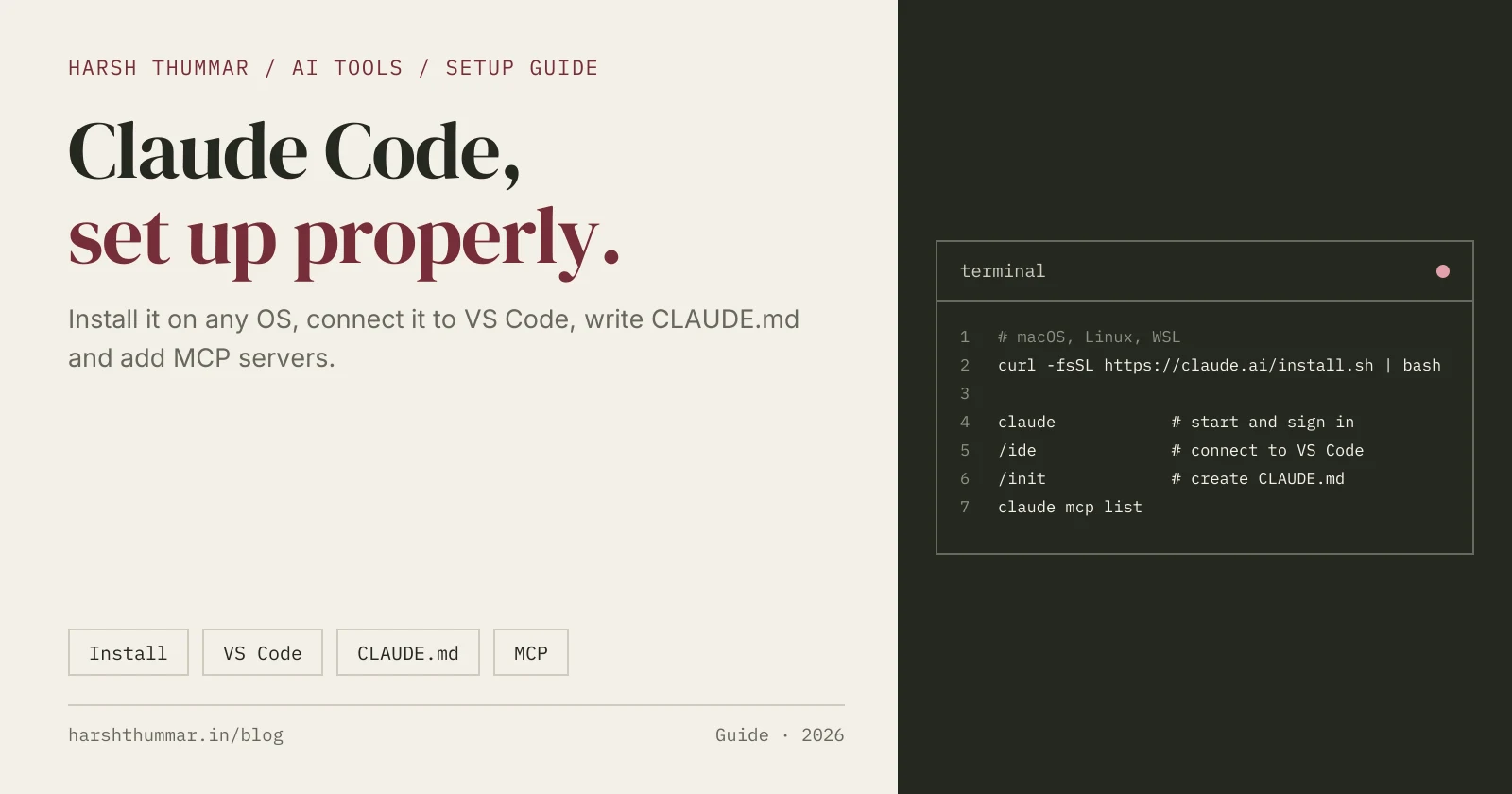
Claude Code is Anthropic's AI coding agent. You describe a task in plain English, and it reads your project, plans the change, edits files, runs commands and tests, and shows you what it did. It works in the terminal, in VS Code and JetBrains, in a desktop app and on the web.
This guide walks through a complete Claude Code setup: installing it on macOS, Linux and Windows, signing in, connecting it to VS Code, giving it project instructions with CLAUDE.md, adding MCP servers, and the commands you will actually use every day.
Every command below comes from the official Claude Code documentation, checked on 22 October 2026. For a quick overview of features, pricing and alternatives, see the Claude Code tool page in my AI tools directory.
What You Need Before You Install
- A paid Claude plan or API account. Claude Code is not included in the Claude Free plan. It comes with Pro, Max, Team and Enterprise plans, or you can pay per use through a Claude Console (API) account.
- A supported OS: macOS 13 or later, Windows 10 (1809) or later, Ubuntu 20.04+, Debian 10+ or Alpine 3.19+.
- At least 4 GB of RAM.
- A project folder, ideally a Git repository so you can review and undo changes easily.
Step 1: Install Claude Code
The native installer is the recommended method. It installs a single binary and keeps itself up to date automatically.
macOS, Linux and WSL
curl -fsSL https://claude.ai/install.sh | bashWindows (PowerShell)
irm https://claude.ai/install.ps1 | iexWindows (Command Prompt)
curl -fsSL https://claude.ai/install.cmd -o install.cmd && install.cmd && del install.cmdOn native Windows, Git for Windows is optional. Without it, Claude Code uses PowerShell as its shell. If you want sandboxing on Windows, run Claude Code inside WSL 2.
Other install options
If you prefer a package manager, these are also official:
# Homebrew (macOS)
brew install --cask claude-code

# WinGet (Windows)
winget install Anthropic.ClaudeCode

# npm (needs Node.js 22 or later; never use sudo)
npm install -g @anthropic-ai/claude-code
Homebrew, WinGet and Linux package installs do not auto-update, so you update them through the package manager. The native install updates itself.
Check the install
claude --version
claude doctor
claude doctor runs read-only diagnostics and tells you if anything in your setup needs attention.
Step 2: Sign In and Run Your First Session
Open a terminal in your project folder and start Claude Code:
cd my-project
claude
The first run opens your browser to sign in with your Claude account (Pro, Max, Team or Enterprise) or a Claude Console account. Once you're signed in, you get an interactive prompt inside your terminal.
A good first prompt is a question, not a change:
Explain how this project is structured and how I run it locally.This shows you whether Claude Code understands your codebase before you let it edit anything.
Step 3: Connect Claude Code to VS Code
There are two ways to use Claude Code with VS Code, and they work together.
Option A: Install the VS Code extension
- Open VS Code (version 1.94.0 or later).
- Open the Extensions view (
Ctrl+Shift+Xon Windows and Linux,Cmd+Shift+Xon macOS). - Search for Claude Code and install the extension published by Anthropic (ID
anthropic.claude-code). - Open the Claude Code panel and sign in.
You can also install it from the command line:
code --install-extension anthropic.claude-codeThe extension gives you a chat panel inside the editor, shows proposed changes as diffs you can accept or reject, and shares your open file and selection as context. It also installs in Cursor and other VS Code based editors.
The extension bundles its own copy of the CLI for the chat panel. If you also want to type claude in VS Code's integrated terminal, install the standalone CLI from Step 1 as well.
Option B: Connect a terminal session with /ide
If you already run claude in an external terminal, connect it to your open editor:
/ideClaude Code then sees the file you are working on and opens its diffs in the editor, so you review changes in VS Code instead of the terminal.
JetBrains IDEs
For IntelliJ IDEA, WebStorm, PyCharm and other JetBrains IDEs, install the Claude Code [Beta] plugin from the JetBrains Marketplace. The plugin does not bundle the CLI, so install the CLI first (Step 1). Use /ide from an external terminal to connect, or press Ctrl+Esc (Cmd+Esc on macOS) to open Claude Code from the editor.
Step 4: Give Claude Code Project Instructions with CLAUDE.md
CLAUDE.md is a Markdown file in your repository that Claude Code reads at the start of every session. It is the single most useful thing you can set up.
Generate a starting version with:
/initClaude Code scans the project and writes a CLAUDE.md. Then edit it so it contains the things a new teammate would need to know:
# Project notes for Claude

## Commands
- Dev server: npm run dev
- Type check: npx tsc --noEmit
- Tests: npm test

## Conventions
- Next.js App Router, TypeScript strict mode
- Tailwind CSS v4 tokens live in app/globals.css
- Never commit .env files or API keys

## Before finishing a task
- Run the type check and tests
- Keep changes small and explain them
Commit CLAUDE.md so everyone on the team gets the same behaviour. Use /memory to open and edit memory files from inside a session.
Step 5: Add MCP Servers (Optional)
The Model Context Protocol (MCP) lets Claude Code use external tools and data, such as your issue tracker, docs or a database. Add a remote HTTP server like this:
claude mcp add --transport http notion https://mcp.notion.com/mcpA local (stdio) server that needs an API key looks like this:
claude mcp add --env AIRTABLE_API_KEY=YOUR_KEY --transport stdio airtable -- npx -y airtable-mcp-serverList and check your servers:
claude mcp listUse --scope project to save a server to a shared .mcp.json file in the repo, or --scope user to make it available in all your projects. Inside a session, /mcp shows server status. Note that the older SSE transport is deprecated; use HTTP for remote servers.
Only add MCP servers you trust, and never paste real keys into files you commit.
The Claude Code Commands You Will Use Most
Inside a session, type / to see every command. These are the ones worth learning first:
/help: list commands and get help./init: create a CLAUDE.md for the project./clear: start a fresh conversation (do this between unrelated tasks)./compact: summarise a long conversation to free up context. You can add instructions, like/compact keep the API decisions./model: switch the AI model./permissions: control which tools and commands Claude Code may run without asking./rewind: go back to an earlier point in the conversation and code./resume: continue a previous session./review: review your current changes./usage: see your usage (/costis an alias)./mcp,/ide,/config,/status,/login,/logout: manage connections, settings and your account.
From your shell:
claude            # start an interactive session
claude --version  # show the installed version
claude doctor     # check your installation
claude update     # update to the latest version
A Simple Workflow That Works
- Start clean. Commit or stash your work so every change Claude Code makes is easy to review.
- Ask before you change. "Find where we validate the signup form and explain it."
- Give one focused task. "Add an email format check to the signup form and a test for it."
- Let it run the checks. Ask it to run the type check and tests, and to fix what fails.
- Review the diff yourself. In VS Code, read every change before you accept it.
- Use /clear between tasks so old context does not confuse the next one.
Safety Tips
- Keep permission prompts on for commands that delete files, push code or touch production.
- Never put secrets in CLAUDE.md, prompts or committed config. Use environment variables.
- Work on a branch, and review diffs before you merge.
- Remember that Claude Code can run real commands on your machine, so only run it in projects you trust.
Related Guides
- Claude Code: features, pricing and alternatives →The quick overview, with verified plans and prices.
- Claude Code vs OpenAI Codex →Features, pricing and which coding agent to choose.
- OpenAI Codex CLI Setup Guide →Install Codex, sign in with ChatGPT and use AGENTS.md.
- GitHub Copilot in VS Code Setup Guide →Completions, chat, agents and the Copilot CLI.
- Cursor AI Code Editor Setup Guide →An AI-first editor with rules, MCP and a CLI.
- AI Tools for Developers →Compare coding agents, editors, app builders and automation tools.
Frequently Asked Questions
Is Claude Code free?
No. Claude Code is not part of the Claude Free plan. It is included with Claude Pro ($20 per month, or $17 per month billed annually) and higher plans, or you can pay per use through a Claude Console API account.
How do I connect Claude Code to VS Code?
Install the Claude Code extension by Anthropic from the VS Code Extensions view (ID anthropic.claude-code), or run code --install-extension anthropic.claude-code. If you run claude in an external terminal, type /ide inside the session to connect it to your open editor.
How do I install Claude Code on Windows?
Open PowerShell and run irm https://claude.ai/install.ps1 | iex. You can also use winget install Anthropic.ClaudeCode. Git for Windows is optional, and you can run Claude Code in WSL 2 if you want sandboxing.
Do I still need Node.js to install Claude Code?
No. The native installer does not need Node.js. Node.js 22 or later is only needed if you choose the npm install method.
What is CLAUDE.md?
CLAUDE.md is a Markdown file in your project that Claude Code reads at the start of each session. Use it for build and test commands, coding conventions and rules. Run /init to generate one.
How do I update Claude Code?
Native installs update automatically. You can also run claude update. Homebrew, WinGet and Linux package installs are updated through their package manager.
Conclusion
A good Claude Code setup takes about ten minutes: install the CLI, sign in, connect it to VS Code with the extension or /ide, and write a short CLAUDE.md. Add MCP servers only when you need them.
From there, the habits matter more than the settings: ask before changing, give one focused task at a time, let it run your tests, and review every diff. Compare it with other agents in the AI tools directory.