OpenAI Codex Setup Guide: Install the CLI, Use It in VS Code and Configure AGENTS.md (2026)
Install the OpenAI Codex CLI on macOS, Linux or Windows, sign in with ChatGPT or an API key, add the VS Code extension, and set up AGENTS.md, sandboxing and MCP.
By Harsh Thummar 10–12 min read
Codex is OpenAI's AI coding agent. It can explain a codebase, write features, fix bugs, refactor and review code. You can use it from a command-line tool, an IDE extension, a desktop app and the web through ChatGPT, and it is included with ChatGPT plans, including a limited Free tier.
This guide covers a complete OpenAI Codex CLI setup: installing it, signing in, using Codex inside VS Code, writing AGENTS.md instructions, choosing safe sandbox settings, running Codex in scripts with codex exec, and connecting MCP servers.
All commands come from OpenAI's official Codex documentation, checked on 22 October 2026. Note that the Codex docs moved from developers.openai.com to learn.chatgpt.com. For plans and alternatives at a glance, see the OpenAI Codex tool page.
What You Need
- A ChatGPT account (Free, Go, Plus, Pro, Business, Edu or Enterprise) or an OpenAI API key.
- macOS, Linux or Windows. Codex runs natively on Windows with its own sandbox. WSL 2 is optional if you want a Linux toolchain; WSL 1 is no longer supported.
- A Git repository to work in, so changes are easy to review.
Step 1: Install the Codex CLI
The standalone installer is the main method in the docs, and running it again also updates Codex.
macOS and Linux
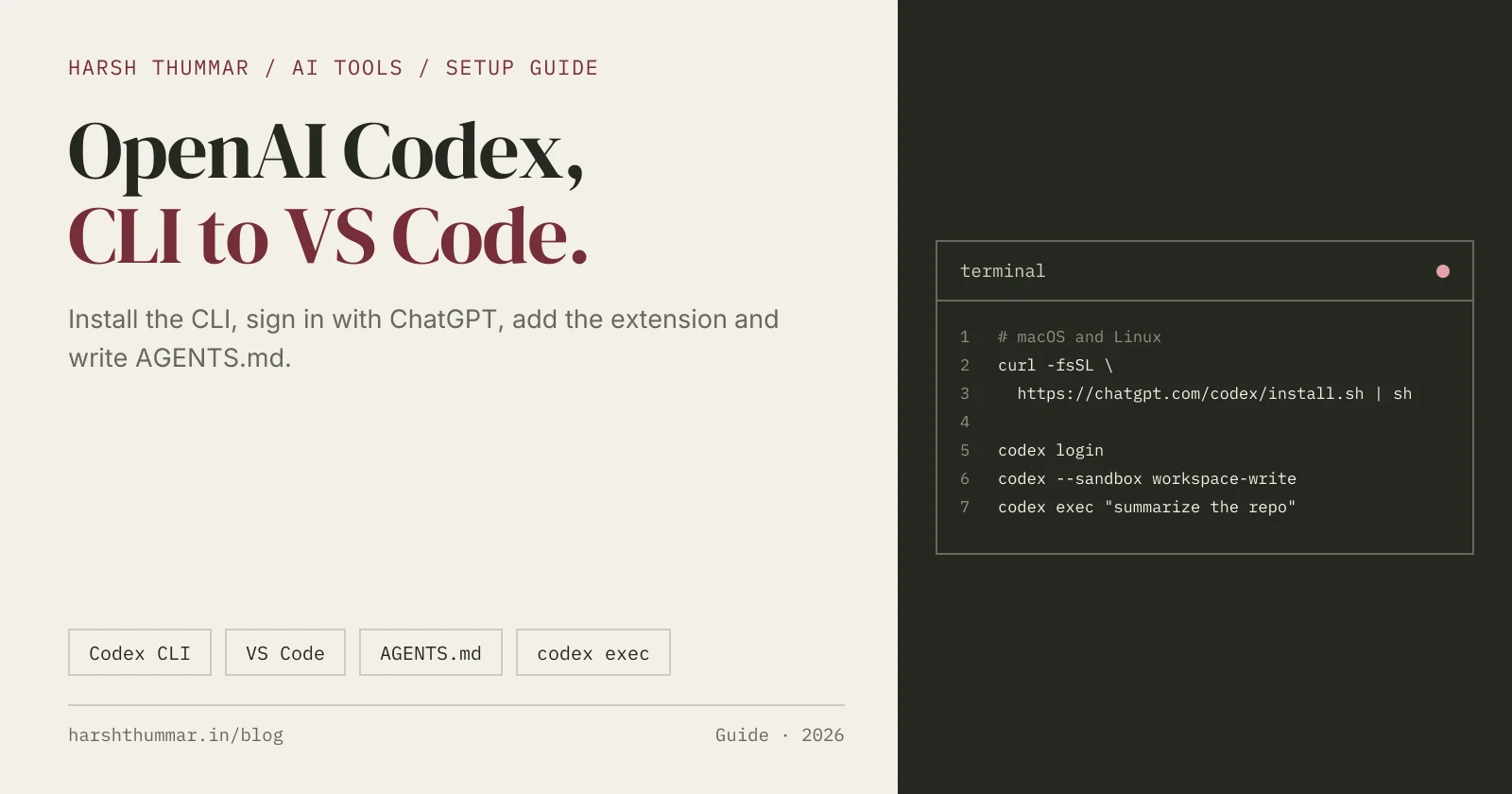
curl -fsSL https://chatgpt.com/codex/install.sh | shWindows (PowerShell)
powershell -ExecutionPolicy ByPass -c "irm https://chatgpt.com/codex/install.ps1 | iex"npm or Homebrew
# npm
npm install -g @openai/codex

# Homebrew (macOS)
brew install --cask codex
Then start it inside your project:
cd my-project
codex
Step 2: Sign In
Codex asks you to sign in on first run. You can also sign in explicitly.
With your ChatGPT account (recommended)
codex loginThis opens the browser and uses your ChatGPT plan's Codex usage.
With an OpenAI API key
printenv OPENAI_API_KEY | codex login --with-api-keyThis bills usage to your API account at API rates. Keep the key in an environment variable, never in your code.
On a remote or headless machine
codex login --device-authCheck or reset your login:
codex login status
codex logout
Step 3: Use Codex in VS Code
Codex has an official IDE extension that works in VS Code, Cursor, Windsurf and VS Code Insiders.
- Open the Extensions view (
Ctrl+Shift+XorCmd+Shift+X). - Search for Codex and install the extension published by OpenAI (ID
openai.chatgpt). - Open the Codex panel and sign in with ChatGPT or your API key.
Or install it from the terminal:
code --install-extension openai.chatgptThe extension lets you chat with Codex about the open file, ask it to make changes, review its edits in the editor and hand longer tasks off to the cloud. Xcode and JetBrains have their own Codex integrations.
Step 4: Give Codex Instructions with AGENTS.md
AGENTS.md is a Markdown file that tells Codex how your project works. Codex reads AGENTS.md files from the repository root down to the folder you are working in, and the nearest file wins when instructions conflict.
# AGENTS.md

## Setup
- Install: npm install
- Dev server: npm run dev
- Tests: npm test

## Rules
- TypeScript strict mode; no `any`
- Keep components small and colocate tests
- Do not edit generated files in /dist
- Never print or commit secrets
You can also keep personal, global instructions in ~/.codex/AGENTS.md. The combined instructions are limited to 32 KiB, so keep them short and specific.
AGENTS.md is also read by other tools, including GitHub Copilot, Cursor and Google Antigravity, so one file can serve your whole team.
Step 5: Choose Safe Sandbox and Approval Settings
Codex runs commands inside a sandbox. The sandbox mode controls what it can touch:
read-only: it can read files but not change them.workspace-write: it can edit files inside your project.danger-full-access: no sandbox. Avoid this unless you are in a disposable environment.
The approval policy controls when it asks you first: on-request (it asks when it needs more access) or never.
A sensible everyday setting:
codex --sandbox workspace-write --ask-for-approval on-requestInside a session, use /permissions to change this. Codex keeps settings in ~/.codex/config.toml, and a project-level .codex/config.toml is used only in projects you have marked as trusted.
Step 6: Run Codex in Scripts with codex exec
codex exec runs a task without the interactive interface, which is useful in scripts and CI. It is read-only by default.
# Ask a question about the repo
codex exec "summarize the repository structure and list the top 5 risky areas"

# Allow it to edit files in the workspace
codex exec --sandbox workspace-write "add input validation to the signup API and update its tests"

# Get JSON output for other tools
codex exec --json "summarize the repo structure" | jq
If you see older tutorials using --full-auto, that flag is no longer supported; use --sandbox workspace-write instead.
Step 7: Connect MCP Servers (Optional)
MCP servers give Codex extra tools, such as up-to-date library docs. Add one from the command line:
codex mcp add context7 -- npx -y @upstash/context7-mcpOr add it to ~/.codex/config.toml:
[mcp_servers.context7]
command = "npx"
args = ["-y", "@upstash/context7-mcp"]
Only add servers you trust.
A Practical Codex Workflow
- Start on a clean branch so you can review or discard changes.
- Ask first: "Where is the payment webhook handled, and how is it tested?"
- Give a specific task with a clear finish line: "Add idempotency to the webhook and a test that sends the same event twice."
- Keep the sandbox at workspace-write and approve anything outside it deliberately.
- Review the diff in VS Code or with
git diffbefore you commit. - Use cloud tasks for longer, independent jobs, and review each result separately.
Related Guides
- OpenAI Codex: features, pricing and alternatives →Verified plans, from Free to Pro and API.
- Claude Code vs OpenAI Codex →Features, pricing and which coding agent to choose.
- Claude Code Setup Guide →Install Claude Code and connect it to VS Code.
- GitHub Copilot in VS Code Setup Guide →Completions, chat, agents and the Copilot CLI.
- Devin AI Software Engineer Guide →Delegate whole tickets to a cloud agent.
- AI Tools for Developers →Compare coding agents, editors and app builders.
Frequently Asked Questions
Is OpenAI Codex free?
Codex is included with ChatGPT plans, including the Free plan with limited usage for quick coding tasks. Paid plans such as Plus ($20 per month) and Pro (from $100 per month) raise the limits. You can also pay per use with an API key.
How do I install the Codex CLI?
On macOS and Linux run curl -fsSL https://chatgpt.com/codex/install.sh | sh. On Windows use the PowerShell installer from the official docs. You can also use npm install -g @openai/codex or brew install --cask codex.
How do I use Codex in VS Code?
Install the Codex extension by OpenAI (ID openai.chatgpt) from the Extensions view, then sign in with ChatGPT or an API key. The same extension works in Cursor and Windsurf.
What is AGENTS.md in Codex?
AGENTS.md is a Markdown file with instructions for Codex, such as setup commands, test commands and coding rules. Codex reads AGENTS.md files from the repository root down to your working folder, and the nearest one takes priority.
Does Codex work on Windows?
Yes. Codex runs natively on Windows with a Windows sandbox. WSL 2 is optional if you need Linux tools, and WSL 1 is no longer supported.
What replaced the --full-auto flag?
The --full-auto flag is no longer supported in codex exec. Use --sandbox workspace-write to let Codex edit files in your workspace.
Conclusion
Setting up Codex takes a few minutes: install the CLI, run codex login, add the VS Code extension, and write a short AGENTS.md. Keep the sandbox at workspace-write with approvals on request, and use codex exec when you want Codex in scripts or CI.
Compare Codex with other coding agents in the AI tools directory.