How I Took a Next.js Site from 60 to 90+ on Mobile PageSpeed (Core Web Vitals Guide)
How to improve mobile PageSpeed score in Next.js: a real case study taking my portfolio from 60 to 90+ by deferring analytics, fixing LCP and shrinking icons.
By Harsh Thummar 13–15 min read
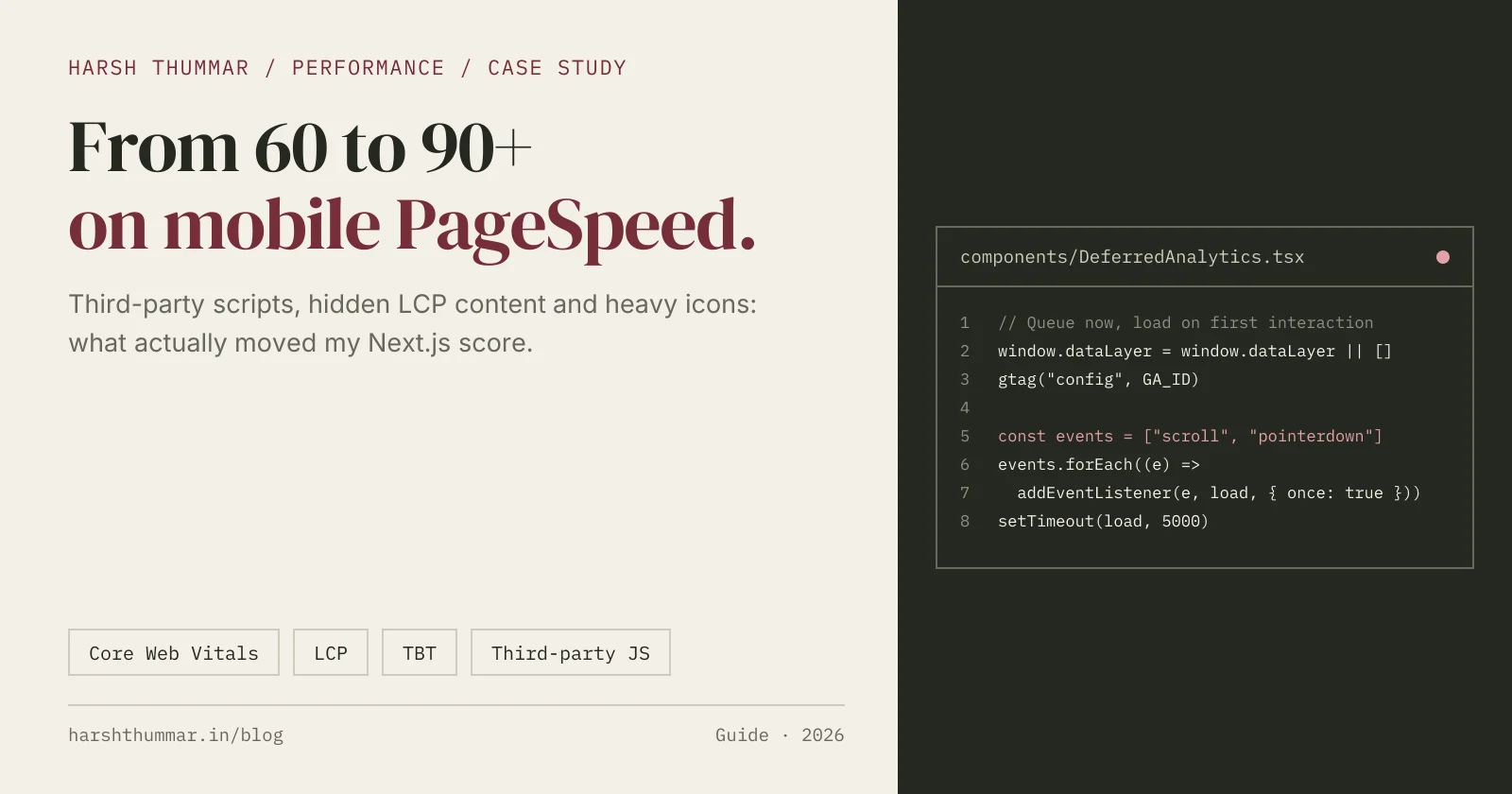
My portfolio, harshthummar.in, is a Next.js 16 site with almost no client-side JavaScript of its own. It looked fast on my laptop. Then I ran it with mobile settings, and the About page scored around 60.
This post is the full case study of how I fixed it. If you want to improve mobile PageSpeed score in Next.js, the short version is this: on my site, my own code was not the main problem. Third-party analytics was, along with a scroll animation that hid the Largest Contentful Paint element until JavaScript loaded.
You'll see the before and after numbers, how I found each problem, and the exact code I used to fix them: a deferred analytics loader, a reveal component that never hides above-the-fold content, and a 361 KB icon cut down to 16 KB.
If you want a broad list of general techniques, I covered that in Next.js 16 performance optimization. This post goes deep on the two things that actually moved my score: third-party JavaScript and LCP.
How I Measured (and Why These Are Lab Estimates)
All numbers below come from local lab runs that reproduce Lighthouse's mobile settings:
- A 412px wide mobile viewport
- 4x CPU slowdown, to approximate a mid-range Android phone
- Slow 4G network: 150 ms round-trip time and about 1.6 Mbps download
I converted the raw metrics into scores using Lighthouse's published scoring curves. So treat every score in this post as a local lab estimate, not an official PageSpeed Insights result. Your numbers will vary between runs, and you should always confirm with PageSpeed Insights after deploying.
Lab data vs field data
PageSpeed Insights shows two different things, and mixing them up causes a lot of confusion:
- Lab data is a single Lighthouse run on Google's servers with simulated throttling. It produces the 0 to 100 performance score.
- Field data comes from the Chrome User Experience Report (CrUX): real Chrome users visiting your site over the previous 28 days, reported at the 75th percentile. This is what Google uses for the Core Web Vitals assessment.
A new or low-traffic site often has no field data at all, so the lab score is all you get. That was my situation, which is why I focused on the lab metrics.
What the score is made of
In current Lighthouse versions, the mobile performance score is a weighted mix of five lab metrics:
- Total Blocking Time (TBT): 30%
- Largest Contentful Paint (LCP): 25%
- Cumulative Layout Shift (CLS): 25%
- First Contentful Paint (FCP): 10%
- Speed Index: 10%
TBT and LCP together are more than half the score. That turned out to be exactly where my problems were.
INP vs TBT
The three Core Web Vitals are LCP, CLS and Interaction to Next Paint (INP). INP replaced First Input Delay (FID) as a Core Web Vital on March 12, 2024. INP needs real user interactions, so Lighthouse can't measure it in a page-load test. TBT is the lab metric that tracks it best: long tasks that block the main thread during load are the same tasks that make early taps feel slow.
The Before Numbers
Here is what my lab runs showed before any changes:
- Home: about 81
- About: about 60
- Case studies: about 83
- Blog article: about 85
Two patterns stood out immediately:
- Total Blocking Time was 520 to 580 ms on every page. Pages with very different content had almost identical TBT. That points to something shared by every page, not something page-specific.
- The About page had an LCP of 6.4 seconds. The good threshold is 2.5 seconds, and anything above 4 seconds is rated poor.
Diagnosis 1: Third-Party JavaScript Was the Real Bottleneck
When TBT is the same everywhere, look at what loads everywhere: the root layout. On my site that included Google Tag Manager and a separately loaded GA4 gtag.js.
Together they were 293 KB of third-party JavaScript. My site's own framework JavaScript was about 160 KB. The analytics scripts were bigger than the entire app, and on a 4x throttled CPU they blocked the main thread for roughly half a second.
Proving it before fixing it
I didn't want to guess, so I ran the same pages again with requests to the analytics domains blocked. You can do this in Chrome DevTools under the Network panel with request blocking, or with Lighthouse's --blocked-url-patterns flag:
npx lighthouse https://your-site.com/about \
  --only-categories=performance \
  --blocked-url-patterns="*googletagmanager.com*" \
  --blocked-url-patterns="*google-analytics.com*" \
  --view
With analytics blocked, the pages measured 93 to 95, and TBT dropped to about 230 ms. That single test proved where the gap was. No amount of tuning my own components would have closed it.
This is the lesson I'd pass on to anyone chasing a mobile score: your own JavaScript is often not the biggest problem. Next.js with Server Components already ships little client code. Tag managers, chat widgets, heatmaps and ad pixels are frequently heavier than the whole app.
Fix 1: A Deferred Analytics Loader
The standard advice is to load analytics with next/script and strategy="lazyOnload", which loads the script during browser idle time after the page's resources are fetched. That's a reasonable first step. The official @next/third-parties components (GoogleTagManager, GoogleAnalytics) are another option, and they load the scripts after hydration.
I went one step further: load the scripts only after the visitor interacts with the page, or 5 seconds after load, whichever comes first. The key detail is that dataLayer and gtag() are defined immediately, so the pageview is queued with the correct timestamp and sent once the real scripts arrive.
Here is the component, adapted from my portfolio with placeholder IDs:
// components/analytics/DeferredAnalytics.tsx
const GTM_ID = "GTM-XXXXXXX";
const GA_ID = "G-XXXXXXXXXX";

// dataLayer and gtag exist immediately, so the pageview is queued.
// The heavy scripts load on first interaction, or 5s after load.
const loader = `
(function () {
  var w = window, d = document;
  w.dataLayer = w.dataLayer || [];
  function gtag() { w.dataLayer.push(arguments); }
  w.gtag = gtag;
  w.dataLayer.push({ "gtm.start": new Date().getTime(), event: "gtm.js" });
  gtag("js", new Date());
  gtag("config", "${GA_ID}");

  var loaded = false;
  var events = ["scroll", "pointerdown", "keydown", "touchstart", "mousemove"];
  function load() {
    if (loaded) return;
    loaded = true;
    events.forEach(function (e) { w.removeEventListener(e, load); });
    [
      "https://www.googletagmanager.com/gtm.js?id=${GTM_ID}",
      "https://www.googletagmanager.com/gtag/js?id=${GA_ID}"
    ].forEach(function (src) {
      var s = d.createElement("script");
      s.async = true;
      s.src = src;
      d.head.appendChild(s);
    });
  }
  events.forEach(function (e) {
    w.addEventListener(e, load, { passive: true, once: true });
  });
  function later() {
    setTimeout(function () { (w.requestIdleCallback || setTimeout)(load); }, 5000);
  }
  if (d.readyState === "complete") later();
  else w.addEventListener("load", later);
})();
`;

export function DeferredAnalyticsScript() {
  return <script id="deferred-analytics" dangerouslySetInnerHTML={{ __html: loader }} />;
}
Then render it in the root layout's <head>:
// app/layout.tsx
import { DeferredAnalyticsScript } from "@/components/analytics/DeferredAnalytics";

export default function RootLayout({ children }: { children: React.ReactNode }) {
  return (
    <html lang="en">
      <head>
        <DeferredAnalyticsScript />
      </head>
      <body>{children}</body>
    </html>
  );
}
The inline script is a few hundred bytes and does no real work at load. It's a Server Component, so it adds nothing to the client bundle either.
The honest trade-off
This approach is not free. A visitor who lands on the page, reads for under about 5 seconds without scrolling, tapping or moving the mouse, and then leaves may never be counted. For a portfolio or blog, where most visitors scroll, I accept that. For a landing page that lives or dies on exact paid-traffic attribution, you might prefer lazyOnload and accept a slightly lower lab score.
The double-tagging pitfall
Look closely at what you load. If your GTM container already contains a Google tag that fires GA4 for the same measurement ID, loading gtag.js directly as well can count every pageview twice. Open your container, check which tags fire on page view, and keep only one path to GA4: either GTM manages it, or the direct gtag.js does. If GTM handles it, drop the gtag/js URL and the config call from the loader.
Diagnosis 2: A Scroll Reveal Was Hiding the LCP Element
TBT explained most pages, but not the About page. Its LCP was 6.4 seconds, far worse than anything the network could explain.
The culprit was a scroll-reveal animation. My Reveal component faded sections up as they entered the viewport. The original version started every block hidden, something like this:
"use client";

// Before: every block starts at opacity 0 in the server HTML.
export default function Reveal({ children }: { children: React.ReactNode }) {
  const [ref, inView] = useInView<HTMLDivElement>();
  return (
    <div ref={ref} className={inView ? "opacity-100" : "opacity-0 translate-y-4"}>
      {children}
    </div>
  );
}
The server HTML shipped with opacity-0. Nothing became visible until React hydrated, the IntersectionObserver fired, and the transition ran. On the About page, the largest above-the-fold block was wrapped in Reveal, so LCP waited for all of that JavaScript, on a throttled CPU, behind half a second of blocking analytics.
Why opacity 0 matters for LCP
According to web.dev's LCP documentation, Chromium excludes elements with an opacity of 0 from LCP candidates, because they are invisible to the user. So hiding text with opacity: 0 doesn't just look slow. The browser can't record it as the LCP element until it actually becomes visible, which ties your LCP to whenever JavaScript decides to show it.
Fix 2: Render Visible on the Server, Hide Only Below the Fold
The fix flips the default. The server renders everything visible. After hydration, the component checks its own position, and only blocks that start below the fold are hidden and animated in on scroll:
// components/motion/Reveal.tsx
"use client";

import { useEffect, useRef, useState } from "react";

type RevealState = "idle" | "pending" | "shown";

export default function Reveal({ children, className }: { children: React.ReactNode; className?: string }) {
  const ref = useRef<HTMLDivElement>(null);
  const [state, setState] = useState<RevealState>("idle");

  useEffect(() => {
    const node = ref.current;
    if (!node) return;
    // Already on screen at load: leave it visible, never animate it.
    if (node.getBoundingClientRect().top < window.innerHeight) return;

    setState("pending");
    const observer = new IntersectionObserver(
      ([entry]) => {
        if (entry.isIntersecting) {
          setState("shown");
          observer.disconnect();
        }
      },
      { threshold: 0.15, rootMargin: "0px 0px -8% 0px" }
    );
    observer.observe(node);
    return () => observer.disconnect();
  }, []);

  return (
    <div ref={ref} className={className} data-reveal={state}>
      {children}
    </div>
  );
}
The styling lives in CSS and keys off the data-reveal attribute:
/* app/globals.css */
[data-reveal] {
  transition:
    opacity 600ms ease-out,
    transform 600ms cubic-bezier(0.2, 0.7, 0.2, 1);
}

@media (scripting: enabled) and (prefers-reduced-motion: no-preference) {
  [data-reveal="pending"] {
    opacity: 0;
    transform: translateY(14px);
  }
}
Three details make this robust:
idleis the server state, andidlehas no hiding rule. First paint always shows the content.@media (scripting: enabled)means the hidden state can only apply when JavaScript is running, so there's no way to get stuck with invisible content.prefers-reduced-motionskips the animation entirely for people who asked for less motion.
Blocks below the fold still fade in nicely as you scroll. Nobody sees the difference, except the browser, which now paints the LCP element immediately.
A note on text entrance animations
The same reasoning applies to headline animations that start at opacity: 0, such as words rising in one by one. If the headline is your LCP element, the browser can't count it until it becomes visible, so a long delay on that animation can add directly to LCP.
On my site I kept a short, CSS-only word animation on page titles. It needs no JavaScript and starts at first paint, so it doesn't wait for hydration. If your LCP is still slow after the other fixes, test removing the entrance animation from the LCP element. It's a cheap experiment.
Fix 3: A 361 KB Icon
While reading the network waterfall, I found a 361 KB 512px PNG icon. It wasn't on the critical path, but on a 1.6 Mbps connection, every request competes for bandwidth with the things that are.
I regenerated the icons with sharp at the sizes actually needed, using a palette PNG:
// scripts/icons.mjs
import sharp from "sharp";
import { writeFile } from "node:fs/promises";

const icon = (size, { forIco = false } = {}) =>
  sharp("scripts/assets/portrait.png")
    .resize(size, size)
    .flatten({ background: "#ffffff" })
    .ensureAlpha()
    // ICO entries must be full RGBA PNGs; standalone icons can use a palette.
    .png(forIco ? { compressionLevel: 9 } : { compressionLevel: 9, palette: true, effort: 10 })
    .toBuffer();

await writeFile("app/icon.png", await icon(192));
await writeFile("app/apple-icon.png", await icon(180));
The 192px palette icon came out at about 16 KB, down from 361 KB. Next.js picks up app/icon.png and app/apple-icon.png automatically and adds the <link> tags for you.
One gotcha: if you also build a favicon.ico from PNG entries, those entries must be full RGBA PNGs. Palette PNGs inside an ICO file can fail to display, so use forIco: true for those sizes.
The After Numbers
After the three fixes, the lab runs looked like this:
- Home: about 94
- About: about 95
- Blog article: about 93
- TBT: about 230 to 270 ms
- About page LCP: from 6.4 s down to about 1.3 s
Again, these are local lab estimates using Lighthouse's mobile settings, not official PageSpeed Insights scores. The pattern is what matters: the gains came from removing third-party work from the load and making sure the LCP element was visible in the server HTML.
The Other Fundamentals (Already in Place)
These weren't the problems on my site, but only because they were already handled. If they're missing on yours, fix them first.
next/font with sensible preloading
next/font self-hosts Google Fonts, so there's no extra connection to Google at runtime. Fonts with a subsets value get a preload link by default:
// app/layout.tsx
import { Inter, IBM_Plex_Mono } from "next/font/google";

const inter = Inter({ subsets: ["latin"], display: "swap", variable: "--font-inter" });

// Used only in small labels further down the page: skip the preload.
const mono = IBM_Plex_Mono({
  subsets: ["latin"],
  weight: "400",
  display: "swap",
  preload: false,
  variable: "--font-mono",
});
Every preloaded font competes with your LCP resources on a slow connection. Preload the font your headline and body text use, and consider preload: false for fonts that only appear lower down.
next/image for the LCP image
If your LCP element is an image, use next/image with explicit dimensions so it doesn't cause layout shift, and tell the browser it's important. In Next.js 16 the priority prop is deprecated in favor of preload, and the docs suggest loading="eager" or fetchPriority="high" in most cases:
import Image from "next/image";

<Image src="/images/hero.webp" alt="Product dashboard" width={1200} height={630} fetchPriority="high" />
Leave every other image lazy, which is the default.
Keep client components small
Mark only the interactive leaves with "use client", not whole pages. My Reveal component is a tiny client wrapper, while the content inside it stays server-rendered. If this boundary is new to you, read React Server Components explained. For reducing the JavaScript you do ship, see JavaScript performance optimization techniques.
Server rendering pairs well with caching too. A cached static shell gets the HTML to the phone faster, which helps FCP and LCP. I explain that in Next.js 16 caching explained.
Common Mistakes When Chasing a Mobile PageSpeed Score
- Optimizing your own bundle first. Check third-party scripts before refactoring components. Blocking them for one test run tells you how much they cost.
- Animating the LCP element from opacity 0. Scroll reveals and fade-ins on above-the-fold content delay LCP until JavaScript or the animation finishes.
- Hiding content in server HTML. If the hidden state is the default, a slow or failed hydration leaves the page blank. Render visible, then hide below-the-fold blocks on the client.
- Double-tagging GA4. A GTM container that fires GA4 plus a direct
gtag.jscan count each pageview twice. - Testing only on desktop. A fast laptop hides main-thread problems that a 4x throttled CPU exposes immediately.
- Treating one Lighthouse run as truth. Scores vary between runs. Run several times, compare the metrics rather than the score, and confirm with field data when you have it.
- Shipping oversized icons and images. A 512px PNG used as a 32px icon still costs its full download.
- Preloading every font. Each preload competes with the LCP resource on slow networks.
Mobile PageSpeed Checklist for Next.js
- Run Lighthouse with mobile settings, or PageSpeed Insights, on your heaviest pages
- Compare TBT across pages; if it's similar everywhere, inspect the root layout
- Re-run with third-party domains blocked to measure their real cost
- Defer analytics and tag managers until interaction or idle time
- Confirm GA4 is fired by only one path (GTM or direct
gtag.js) - Identify the LCP element in the Lighthouse report
- Make sure the LCP element is visible in the server HTML, not at
opacity: 0 - Limit scroll reveals to content that starts below the fold
- Give the LCP image
fetchPriority="high"and explicit dimensions - Preload only the fonts used above the fold
- Resize icons to the sizes you actually serve
- Confirm the final result with PageSpeed Insights after deploying
My Recommendation
Start with measurement, not refactoring. Run the page with mobile throttling, check whether TBT is the same on every page, and block third-party scripts for one run. That one experiment tells you whether to look at your own code or at what you've added to the layout.
Then find your LCP element and make sure the server HTML shows it. Animations are fine for content below the fold, but the first screen should never wait for JavaScript.
On my portfolio, those two changes did nearly all the work. I used the same server-first approach on the SEO-focused NutriLeft case study, where fast mobile pages matter for search visibility, alongside the metadata work covered in Next.js SEO: metadata, JSON-LD and AI search.
Related Next.js Performance Guides
- Next.js 16 Performance Optimization →15 practical techniques for faster pages and better Core Web Vitals.
- JavaScript Performance Optimization Techniques →Reduce the cost of the JavaScript you do ship.
- Next.js 16 Caching Explained →use cache, cacheLife and cacheTag for a fast static shell.
- Next.js SEO: Metadata, JSON-LD and AI Search →Make fast pages discoverable in search and AI answers.
- React Server Components Explained →Keep client components small and server-render the rest.
Frequently Asked Questions
Why is my Next.js site slow on mobile PageSpeed but fast on desktop?
Lighthouse mobile simulates a mid-range phone with a 4x slower CPU and a slow 4G connection. JavaScript that runs instantly on a laptop becomes long main-thread tasks on that profile, which shows up as high Total Blocking Time.
Does Google Tag Manager hurt PageSpeed?
It can. On my site, GTM plus a separate GA4 gtag.js added 293 KB of JavaScript and about half a second of blocking time on a throttled phone. Loading it after the first interaction or after idle time removes that cost from page load.
What is the difference between lab data and field data in PageSpeed Insights?
Lab data is a single simulated Lighthouse run that produces the performance score. Field data comes from real Chrome users over the last 28 days (CrUX) and is what Google uses for the Core Web Vitals assessment.
Do scroll animations affect Largest Contentful Paint?
Yes, if they hide above-the-fold content. Chromium does not count elements with opacity 0 as LCP candidates, so content that starts invisible cannot become the LCP element until it is shown.
Did INP replace FID as a Core Web Vital?
Yes. Interaction to Next Paint replaced First Input Delay as a Core Web Vital on March 12, 2024. Lighthouse cannot measure INP during a page load, so Total Blocking Time is the closest lab metric.
Will deferring analytics lose data?
Some. Visitors who leave within about 5 seconds without scrolling, tapping or moving the mouse may not be counted. For most blogs and portfolios that's an acceptable trade for a faster page, but measure the impact on your own reports.
Conclusion
You can improve mobile PageSpeed score in Next.js without rewriting your app. On my portfolio, the About page went from about 60 to about 95 in lab estimates, and its LCP dropped from 6.4 seconds to about 1.3 seconds.
The fixes were simple once I measured properly: defer third-party analytics until the visitor interacts, render above-the-fold content visible on the server, and stop shipping a 361 KB icon.
Measure first, block third-party scripts for one run, find your LCP element, and confirm the result with PageSpeed Insights after you deploy.