npm Supply Chain Attacks: How to Protect Your JavaScript and Next.js Projects in 2026
A practical guide to npm supply chain security: how attacks hide in packages and config files, how to detect them, and how to lock down Next.js projects.
By Harsh Thummar 12–14 min read
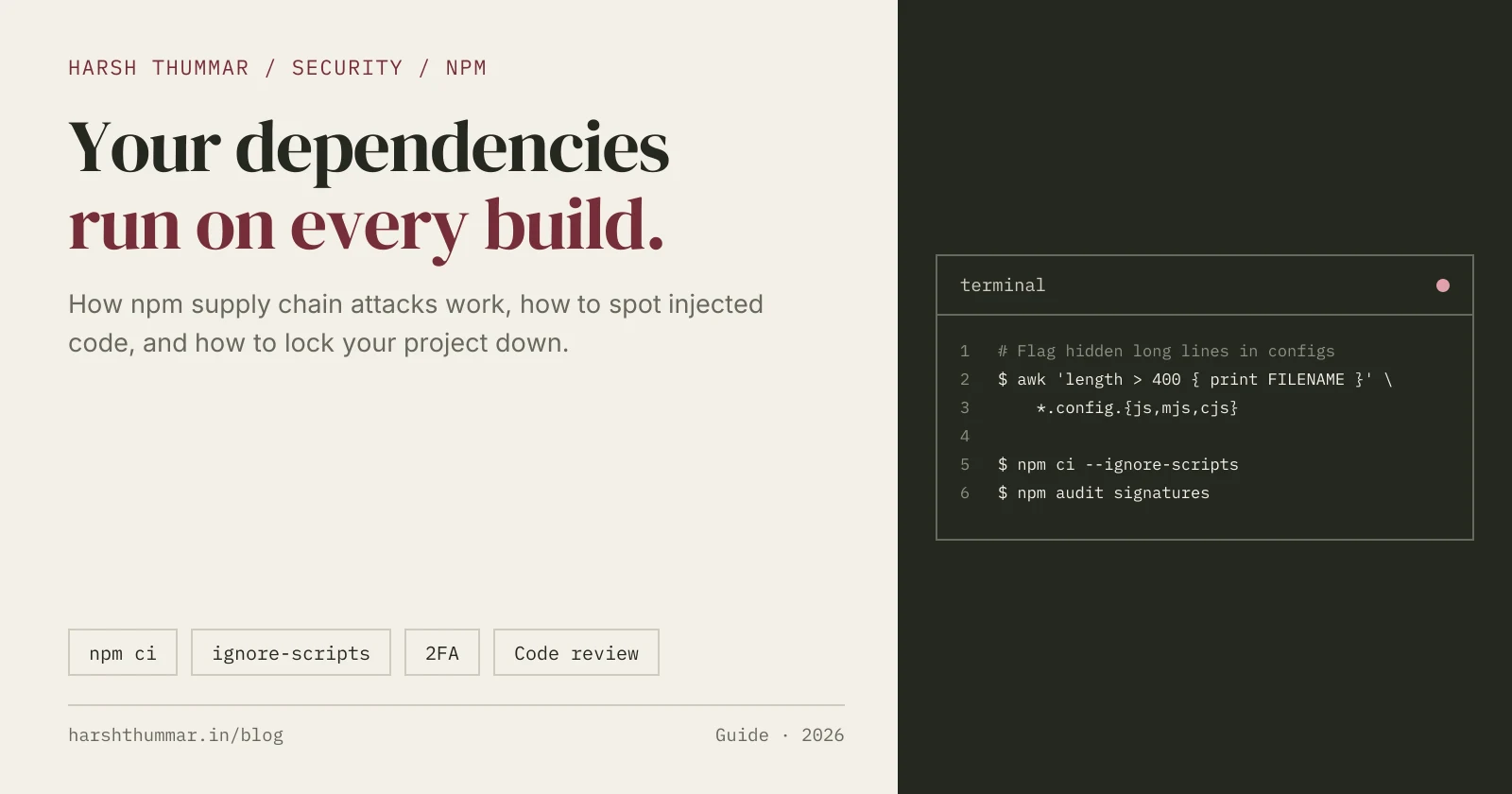
Most JavaScript projects run thousands of lines of code that nobody on the team has ever read. Every npm install pulls in direct dependencies, their dependencies, and install scripts that can execute on your machine before you write a single line.
That is why npm supply chain security has become a core skill for full-stack developers, not just for security teams. An attacker no longer needs to break into your server. They only need to get one malicious line into something your project executes.
In this guide, you'll learn how supply chain attacks against JavaScript and Next.js projects actually work, why config files like postcss.config.mjs and next.config.ts are a favourite hiding place, how to detect injected code with simple scripts, and how to respond if your machine or repository has been compromised.
What Is a Software Supply Chain Attack?
A supply chain attack targets something you trust and execute automatically, instead of attacking your application directly.
In the JavaScript world, that "something" is usually one of these:
- A package from the npm registry (or one of its transitive dependencies)
- A script that runs during
npm install - A file in your own repository that runs on every
npm run devornpm run build - A tool on your machine, such as an editor extension or CLI
- A credential, such as an npm or GitHub token, that lets someone publish code as you
Attacker compromises a trusted link
           ↓
Malicious code lands in a package, config file, or tool
           ↓
Developer machine / CI / Vercel runs it automatically
           ↓
Secrets, tokens, and credentials are exfiltrated
           ↓
Stolen tokens are used to spread to more packages and repos
The last step is what makes these attacks spread.
Recent npm Incidents Worth Knowing
Two incidents from 2025 show the patterns clearly.
In September 2025, the npm account of a well-known maintainer was taken over through a phishing email that imitated npm support. Malicious versions of widely used packages, including chalk and debug, were published. The injected code targeted cryptocurrency activity in browsers, and the bad versions were removed within hours, but CI pipelines that installed during that window still pulled them in.
Later the same month, a self-replicating worm known as Shai-Hulud spread through npm. It stole tokens from developer machines and CI environments, scanned for further secrets, and used stolen npm tokens to publish infected versions of other packages the victim maintained. A second wave followed in November 2025.
The lesson from both: the packages were legitimate and popular. "Only use well-known packages" is not a complete defence.
Common Attack Vectors in JavaScript Projects
1. Compromised Maintainer Accounts
An attacker phishes a maintainer's credentials and publishes a new patch version. Anyone with a loose range like ^4.1.0 and no lockfile gets it on the next install.
2. Typosquatting and Look-Alike Packages
Packages named one character away from popular ones. A single typo in npm install is enough.
3. Install Scripts
preinstall, install, and postinstall scripts in a dependency's package.json run automatically during installation, with your user's permissions. That includes access to ~/.npmrc, SSH keys, cloud CLI credentials, and environment variables.
4. Malicious Code Injected Into Project Config Files
This one is easy to miss. Instead of a package, the attacker modifies a file inside your own repository:
postcss.config.mjstailwind.config.jsnext.config.tseslint.config.mjsvite.config.ts
The legitimate config stays intact and working. The payload is appended to an existing line after a long run of spaces, so it sits hundreds or thousands of characters to the right, off-screen in your editor. In a quick diff review it can look like nothing changed except whitespace.
The payload itself is usually obfuscated: variable names like _0x3f2a, large arrays of encoded strings, and calls that decode and execute them at runtime.
5. Compromised Editor Extensions
Extensions in VS Code and compatible editors run with broad access to your files and terminal. A malicious or hijacked extension can modify files in your workspace, including the config files above.
6. Leaked Tokens
npm tokens in .npmrc, GitHub personal access tokens, and deployment tokens committed to a repository or left in CI logs are a direct path to publishing malicious code under your name.
Why Config Files Are Such an Attractive Target
Config files are executable JavaScript, not data. When you run:
npm run dev
npm run build
npx eslint .
Next.js, PostCSS, Tailwind, and ESLint all import their config files and execute them in Node.js. That gives injected code:
- Frequent execution — every dev server start, every build, every lint run
- Full Node.js access — file system, network,
process.env, child processes - Execution in CI and on hosting platforms — the same file runs during your GitHub Actions build and your Vercel deployment, where production secrets are present
- Low review attention — developers rarely reread a PostCSS config that "just works"
With a Tailwind CSS v4 setup, postcss.config.mjs is only a few lines long, so any change should be obvious, as long as you actually look.
How to Detect Injected Code
Review Diffs Properly Before Committing
Use a diff view that shows whitespace and long lines:
# Show staged changes, highlighting whitespace problems
git diff --cached --ws-error-highlight=all

# Show only which files changed and how many lines
git diff --cached --stat
If a config file appears in --stat and you didn't intend to change it, stop and investigate.
Check for Unusually Long Lines
Legitimate config lines are short. A line longer than a few hundred characters in a config file deserves a look:
# Print any line longer than 400 characters in common config files
awk 'length > 400 { print FILENAME ":" FNR " (" length " chars)" }' \
  *.config.js *.config.mjs *.config.cjs *.config.ts 2>/dev/null
To catch the "long run of spaces" trick specifically:
# Lines containing 100+ consecutive spaces followed by more code
grep -nE ' {100,}[^ ]' *.config.* 2>/dev/null
Grep for Obfuscation Patterns
Search your source (excluding node_modules) for patterns that are rare in hand-written code:
grep -rnE "_0x[0-9a-fA-F]{4,}|String\.fromCharCode|eval\(|new Function\(" \
  --include=*.js --include=*.mjs --include=*.cjs --include=*.ts \
  --exclude-dir=node_modules --exclude-dir=.next --exclude-dir=.git .
Not every match is malicious, but in a config file, any match should be explained.
Inspect the History of Config Files
# Every change ever made to the file, with full patches
git log -p --follow -- postcss.config.mjs

# Who last touched each line (look for unexpected recent commits)
git blame next.config.ts
Watch for vague commit messages, unexpected authors, or config changes bundled into unrelated features.
Pay Attention to Other Signals
- Antivirus or endpoint alerts on a file inside your project — don't dismiss them as false positives without checking
- Unexpected network calls when you start the dev server, such as connections to unknown domains or IPs
- Unexpected npm or GitHub activity — publish notifications, new tokens, new repositories, or new deploy keys
A Reusable Detection Script
Here is a small Node.js script you can commit to your repository as scripts/check-config.mjs. It flags long lines, hidden whitespace runs, and common obfuscation patterns in config files:
// scripts/check-config.mjs
import { readFileSync, existsSync } from "node:fs";

const MAX_LINE_LENGTH = 300;
const DEFAULT_FILES = [
  "next.config.ts",
  "next.config.mjs",
  "next.config.js",
  "postcss.config.mjs",
  "postcss.config.js",
  "tailwind.config.ts",
  "tailwind.config.js",
  "eslint.config.mjs",
];

const patterns = [
  { name: "hidden whitespace run", regex: /\s{80,}\S/ },
  { name: "obfuscated identifier", regex: /_0x[0-9a-f]{4,}/i },
  { name: "dynamic code execution", regex: /\beval\s*\(|new\s+Function\s*\(/ },
  { name: "char code decoding", regex: /String\.fromCharCode/ },
  { name: "child process", regex: /child_process/ },
];

const files = process.argv.length > 2 ? process.argv.slice(2) : DEFAULT_FILES;
let problems = 0;

for (const file of files) {
  if (!existsSync(file)) continue;

  const lines = readFileSync(file, "utf8").split(/\r?\n/);

  lines.forEach((line, index) => {
    const reasons = [];

    if (line.length > MAX_LINE_LENGTH) {
      reasons.push(`line is ${line.length} chars`);
    }

    for (const { name, regex } of patterns) {
      if (regex.test(line)) reasons.push(name);
    }

    if (reasons.length > 0) {
      problems++;
      console.error(`${file}:${index + 1} -> ${reasons.join(", ")}`);
    }
  });
}

if (problems > 0) {
  console.error(`\n${problems} suspicious line(s) found. Review before continuing.`);
  process.exit(1);
}

console.log("Config files look clean.");
Add it to package.json so you can run it anywhere, including CI:
{
  "scripts": {
    "check:config": "node scripts/check-config.mjs"
  }
}
Running npm run check:config as an early CI step means a tampered config fails the pipeline before next build executes it with production secrets.
Block It at Commit Time
A pre-commit hook catches the problem before it ever reaches your remote. Save this as .git/hooks/pre-commit (or as a Husky hook so the whole team gets it):
#!/bin/sh
# Check any staged config files for suspicious lines
files=$(git diff --cached --name-only --diff-filter=ACM | grep -E '\.config\.(js|mjs|cjs|ts)$')

[ -z "$files" ] && exit 0

node scripts/check-config.mjs $files || {
  echo "Commit blocked: suspicious content in config files."
  exit 1
}
It's a simple guardrail, not a full scanner, but it targets exactly the trick described above.
Prevention: Hardening Your npm Workflow
Commit Your Lockfile and Use npm ci
package-lock.json records the exact version and integrity hash of every package. In CI, use:
npm cinpm ci installs exactly what the lockfile says and fails if package.json and the lockfile disagree. A new malicious patch release won't slip in silently on the next build.
Restrict Install Scripts
You can stop dependency lifecycle scripts from running by adding this to a project-level .npmrc:
# .npmrc
ignore-scripts=true
Or for a single install:
npm ci --ignore-scriptsBe aware of the trade-offs. Some packages with native binaries rely on install scripts, and with this setting npm also skips the pre and post hooks of your own scripts. Test your project, then explicitly run npm rebuild <package> for the specific dependencies you trust. If you use pnpm, recent versions already block dependency build scripts unless you allow them.
Use npm audit — and Know Its Limits
npm audit
npm audit --omit=dev
npm audit checks your dependency tree against known, reported vulnerabilities. It will not catch a malicious version published an hour ago, and it does nothing about code injected into your own config files. Treat it as one layer, not the whole defence.
Verify Signatures and Provenance
npm audit signaturesThis verifies the registry signatures of installed packages and any provenance attestations they publish. Provenance links a package version to the source repository and CI workflow that built it.
If you publish packages yourself, prefer publishing from CI with provenance (or npm's trusted publishing via OIDC) instead of from your laptop with a long-lived token.
Pin Versions and Review Updates
- Use exact versions for critical build tooling where practical
- Use Dependabot or Renovate for updates, but review each PR — read the changelog and the diff for anything unexpected
- Renovate's
minimumReleaseAgeoption can delay adopting brand-new releases, which gives the community time to spot a compromised version
Protect Your Accounts and Tokens
- Enable 2FA on npm, GitHub, and your hosting provider — ideally with a security key or authenticator app
- Use granular, least-privilege tokens with short expiry dates instead of broad, long-lived ones
- Never commit
.npmrcfiles containing tokens; keep secrets in environment variables - Be suspicious of any "urgent" email asking you to reset 2FA or re-verify an account; navigate to the site yourself instead of clicking the link
Scope Secrets in CI and Deployment
- In GitHub Actions, set minimal
permissionsfor theGITHUB_TOKENand use environment-scoped secrets - In Vercel, scope environment variables to Production, Preview, or Development as needed, so preview builds of untrusted branches don't see production credentials
- Keep runtime-only secrets (database URLs, SMTP passwords) out of build steps where possible
The patterns in building a secure REST API with Node.js and Next.js 16 authentication apply here too: the less a single process can access, the less a single compromise can leak.
Incident Response: What to Do If You Find Injected Code
If you find suspicious code in a config file or dependency, assume the code has already run. Work through these steps in order.
1. Stop Running the Project
Stop the dev server and cancel running builds. Every npm run dev or npm run build is another execution.
2. Scan the Machine
Run a full antivirus or endpoint scan and check for unfamiliar startup items and scheduled tasks. If unsure, treat the machine as compromised.
3. Remove the Malicious Code
Restore the affected files from a known-good commit, delete node_modules and .next, and reinstall from a verified lockfile:
git checkout <known-good-commit> -- postcss.config.mjs
rm -rf node_modules .next
npm ci --ignore-scripts
npm run check:config
4. Rotate Every Credential the Code Could Reach
Do this from a clean device, since a compromised machine may capture new passwords too:
- GitHub passwords, personal access tokens, SSH keys, and deploy keys
- npm tokens and account password
- Hosting tokens (Vercel, Netlify, cloud providers) and their environment variables
- SMTP credentials — for example, the mailer used by a Next.js contact form
- Database connection strings and API keys
- Passwords saved in your browser, since many info-stealers target browser credential stores
For apps that hold sensitive user data, such as a finance dashboard like the HSFin case study, rotate database credentials first.
5. Check Deployment and Account Logs
Review recent deployments, build logs, GitHub security logs, npm publish history, and your provider's audit logs for activity you don't recognise.
6. Review Git History
Find when the malicious change was introduced and which commits, branches, and forks contain it. If secrets were ever committed, consider rewriting history with a tool like git filter-repo — but remember that rewriting history doesn't un-leak a secret. Rotation is what actually protects you.
7. Audit Editor Extensions and Tools
Remove extensions you don't use, check the publisher of the rest, and review globally installed npm packages:
npm ls -g --depth=0Common Mistakes to Avoid
- Treating config files as harmless: They are executable code that runs on every dev and build.
- Skimming diffs in an editor that wraps or truncates lines: Off-screen payloads stay off-screen.
- Running
npm installin CI instead ofnpm ci: You lose the guarantee that builds match your lockfile. - Relying only on
npm audit: It only knows about already-reported vulnerabilities. - Auto-merging dependency PRs: Automation should propose updates, not approve them.
- Using long-lived, all-access tokens: One leak becomes full account access.
- Rotating credentials from the infected machine: New passwords can be captured just like the old ones.
npm Supply Chain Security Checklist
package-lock.jsoncommitted andnpm ciused in CI and deployment- Install scripts restricted with
ignore-scriptswhere the project allows it npm auditandnpm audit signaturesrun regularly- Dependabot or Renovate enabled, with every update reviewed by a human
scripts/check-config.mjsruns in a pre-commit hook and as an early CI step- Config file changes always reviewed with full-width diffs
- 2FA enabled on npm, GitHub, and hosting accounts
- Tokens are granular, least-privilege, and short-lived
- CI and Vercel secrets scoped to the environments that need them
- Editor extensions and global npm packages audited periodically
- Written incident response steps the whole team can follow
Related Security and Full-Stack Guides
- Next.js 16 Authentication →Secure login, sessions, protected routes, and RBAC in the App Router.
- Secure REST API with Node.js, Express, JWT and MongoDB →Hashing, tokens, validation, and API hardening.
- Secure Next.js Contact Form →Server Actions, Zod validation, and safe SMTP handling.
- TypeScript with React and Node.js →Type-safe full-stack foundations for production projects.
- Next.js 16 Performance Optimization →Keep your builds fast and your dependency footprint lean.
Frequently Asked Questions
What is an npm supply chain attack?
It is an attack that delivers malicious code through something your project trusts and runs automatically, such as an npm package, an install script, a config file, or a developer tool, rather than attacking your application directly.
Does npm audit protect me from malicious packages?
Only partly. npm audit reports known vulnerabilities from advisory databases, so it won't flag a freshly published malicious version or code injected into your own files.
Is it safe to set ignore-scripts=true in .npmrc?
For many web projects, yes, and it removes a major attack vector. Some packages with native binaries need their install scripts, so test your project and rebuild only the specific dependencies you trust.
Why do attackers inject code into postcss or next config files?
Because those files are executed by Node.js on every npm run dev and npm run build, locally and in CI, with access to environment variables and the file system — and developers rarely review them.
How can I spot hidden code in a config file?
Look for lines that are unusually long, contain long runs of whitespace, or include obfuscated names like _0x…. A quick awk 'length > 400' check or the detection script in this guide will surface them.
What should I rotate first after a compromise?
Start with credentials that allow publishing or deploying code — GitHub, npm, and hosting tokens — then database, SMTP, and API keys, and finally browser-saved passwords. Do it from a clean device.
Conclusion
Supply chain attacks work because modern JavaScript development runs a lot of code automatically. You can't read every dependency, but you can control what runs, when it runs, and what it can reach.
Good npm supply chain security comes down to a few habits: lockfiles with npm ci, restricted install scripts, reviewed updates, scoped short-lived tokens, and treating config files as the executable code they are. Add a small detection script and a pre-commit hook, and the off-screen payload trick stops being invisible.
If something does slip through, a calm, ordered response — stop, scan, clean, rotate, review — limits the damage. Pair these practices with solid Next.js authentication and a secure API layer, and your projects will be far harder targets.