n8n Setup Guide: Self-Host with Docker, Build Your First Workflow and an AI Agent (2026)
Install n8n with Docker or npx, configure environment variables, build your first workflow, add an AI Agent and Code node, and back up workflows with the n8n CLI.
By Harsh Thummar 11–13 min read
n8n is a workflow automation platform for technical teams. You build workflows on a visual canvas by connecting nodes: a trigger, such as a webhook, form or schedule, followed by steps that call apps, APIs, databases and AI models. When the visual nodes aren't enough, you can write JavaScript or Python inside the workflow.
Its biggest draw for developers is that the Community Edition is free to self-host. This n8n self-host setup guide shows you how to run it with Docker or npx, configure it properly, build a first workflow and an AI agent, and back everything up with the n8n CLI.
Commands come from the official n8n documentation, checked on 22 October 2026 (the hosting docs recently moved under /deploy/host-n8n/). For cloud pricing and alternatives, see the n8n tool page.
Cloud or Self-Hosted?
- n8n Cloud: n8n runs it for you. Plans start at €20 per month billed annually, with a free trial. Best if you don't want to manage a server.
- Self-hosted Community Edition: free, and your data stays on your own infrastructure. You are responsible for updates, backups and security.
The rest of this guide is about self-hosting.
Option 1: Run n8n with Docker (Recommended)
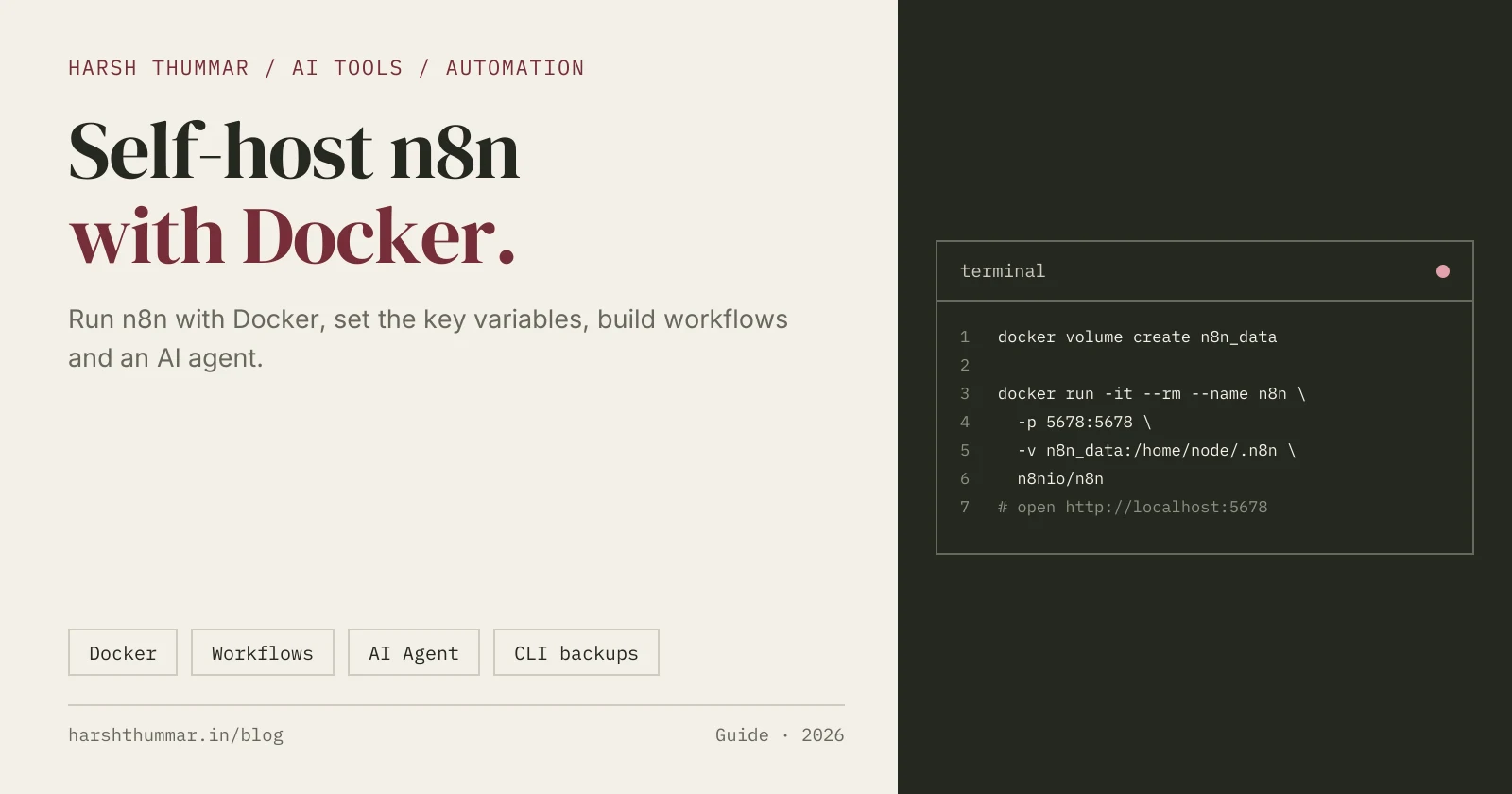
Docker is the most reliable way to self-host n8n. First create a volume so your workflows and credentials survive restarts:
docker volume create n8n_dataThen start n8n:
docker run -it --rm \
 --name n8n \
 -p 5678:5678 \
 -e GENERIC_TIMEZONE="Asia/Kolkata" \
 -v n8n_data:/home/node/.n8n \
 n8nio/n8n
Replace the timezone with yours. Open http://localhost:5678 and create the owner account.
To update a Docker install, pull the new image and start the container again:
docker pull n8nio/n8nOption 2: Try n8n Quickly with npx
If you have Node.js between version 20.19 and 24.x, you can start n8n without Docker:
npx n8nOr install it globally:
npm install n8n -g
n8n
This is great for a quick look on your laptop, but note that npm-based installs are deprecated from n8n 3.0, so use Docker for anything long-lived.
Option 3: Production with Docker Compose
For a server with a real domain and HTTPS, n8n's official Docker Compose setup uses Traefik as a reverse proxy. Its .env file looks like this:
DOMAIN_NAME=example.com
SUBDOMAIN=n8n
GENERIC_TIMEZONE=Asia/Kolkata
SSL_EMAIL=you@example.com
The compose file uses these to set N8N_HOST and the webhook URL, so n8n is available at https://n8n.example.com. Start and update it with:
sudo docker compose up -d

# Update
docker compose pull
docker compose down
docker compose up -d
Follow the full compose file in the official docs for your version.
Environment Variables You Should Know
N8N_HOST: the hostname n8n runs on (defaultlocalhost).N8N_PORT: the port (default5678).N8N_PROTOCOL:httporhttps(defaulthttp).N8N_WEBHOOK_URL: the public URL for webhooks, needed behind a reverse proxy. It requires n8n 2.30.0 or later; older versions useWEBHOOK_URL.GENERIC_TIMEZONE: the timezone for schedule triggers.N8N_ENCRYPTION_KEY: the key that encrypts saved credentials.
The encryption key is the one people regret ignoring. If you don't set it, n8n generates a random key on first launch. Back it up, because without it you can't decrypt your saved credentials after moving or restoring n8n. Set your own in production:
-e N8N_ENCRYPTION_KEY="a-long-random-secret-you-store-safely"Build Your First Workflow
Let's build a workflow that saves contact form submissions and notifies you.
- Click Create workflow.
- Add a Webhook trigger, set the method to POST and the path to
contact. n8n gives you a test URL and a production URL. - Add an Edit Fields (Set) node to keep only
name,emailandmessage. - Add a node for where the data should go, such as Google Sheets, a database or your CRM.
- Add a Slack, Telegram or Email node to notify you.
- Click Execute workflow, send a test request, and check the data at each step:
curl -X POST http://localhost:5678/webhook-test/contact \
  -H "Content-Type: application/json" \
-d '{"name":"Asha","email":"asha@example.com","message":"Hello!"}'- When it works, activate the workflow so the production URL is live.
Add Custom Logic with the Code Node
The Code node runs JavaScript or Python. Native Python is stable in n8n 2 (the older Pyodide-based Python was removed in 2.0). A JavaScript example that cleans incoming emails:
// Code node, "Run Once for All Items"
return $input.all().map((item) => ({
  json: {
    ...item.json,
    email: item.json.email.trim().toLowerCase(),
  },
}));
Build an AI Agent
The AI Agent node connects a language model to tools and memory, so it can decide which steps to take.
- Add a Chat Trigger (or a webhook) to receive a message.
- Add an AI Agent node.
- Connect a chat model (for example OpenAI, Anthropic or Google Gemini) with your API key stored as a credential.
- Connect at least one tool, such as an HTTP Request tool for your API, a database tool or a "Call n8n Workflow" tool.
- Optionally add memory so it remembers the conversation.
Every agent now works as a tools agent; the old "agent type" setting was deprecated. Write a clear system message describing what the agent may and may not do.
Back Up and Move Workflows with the CLI
The n8n CLI exports and imports workflows and credentials. With Docker, run these through docker exec.
# Export all workflows to one file
n8n export:workflow --all --output=backups/latest/file.json

# Export each workflow to its own file (good for Git)
n8n export:workflow --backup --output=backups/latest/

# Export credentials (encrypted)
n8n export:credentials --backup --output=backups/latest/

# Import workflows
n8n import:workflow --input=file.json
n8n import:workflow --separate --input=backups/latest/
Store backups and your encryption key somewhere safe and separate.
Security Checklist for Self-Hosting
- Run n8n behind HTTPS with a reverse proxy.
- Set and back up N8N_ENCRYPTION_KEY.
- Keep n8n updated, and read the release notes before major versions.
- Protect webhooks that trigger important actions with authentication.
- Back up the n8n_data volume or database regularly.
Related Guides
- n8n: features, pricing and alternatives →Cloud plans and self-hosting options.
- Build an AI Agent with Next.js →The code-first way to build agents.
- Secure REST API with Node.js →Secure the APIs your workflows call.
- Claude Code Setup Guide →An AI coding agent for your terminal.
- AI Tools for Developers →Compare automation tools, agents and builders.
Frequently Asked Questions
Is n8n free?
The self-hosted Community Edition is free. n8n Cloud starts at €20 per month billed annually, with a free trial, and there are Business and Enterprise plans.
How do I install n8n with Docker?
Run docker volume create n8n_data, then docker run -it --rm --name n8n -p 5678:5678 -v n8n_data:/home/node/.n8n n8nio/n8n, and open http://localhost:5678.
What port does n8n use?
n8n runs on port 5678 by default, so a local install is available at http://localhost:5678. Change it with the N8N_PORT environment variable.
Why is N8N_ENCRYPTION_KEY important?
It encrypts your saved credentials. If you don't set one, n8n generates a random key on first launch. Back it up, because you need the same key to read your credentials after a move or restore.
Can I use Python in n8n?
Yes. The Code node supports JavaScript and native Python, which is stable in n8n 2.
How do I back up n8n workflows?
Use the n8n CLI: n8n export:workflow --backup --output=backups/latest/ exports each workflow to its own file, and n8n import:workflow restores them.
Conclusion
Self-hosting n8n takes a few minutes with Docker: create a volume, run the container, open port 5678. For production, use Docker Compose with HTTPS, set your own encryption key and back up regularly. From there, start with a simple webhook workflow, then add Code nodes and AI agents as you need them.
Compare n8n with other AI tools in the AI tools directory.