- Why Use the View Transitions API
- How View Transitions Work in the App Router
- Step 1: Wrap Pages in template.tsx, Not layout.tsx
- Step 2: Write the Animations in CSS
- Step 3: Respect Reduced Motion
- Step 4 (Optional): Directional Slides With transitionTypes
- How I Tested It
- Browser Support
- Common Mistakes
- Next.js Page Transitions Checklist
- My Recommendation
- Related Next.js Guides
- Frequently Asked Questions
- Conclusion
Most page transition tutorials for React start with installing an animation library. In Next.js 16 you don't need one. React's <ViewTransition> component works with the App Router out of the box, and the browser's View Transitions API does the animating.
This guide shows how to add Next.js page transitions the way I did on my own portfolio, harshthummar.in: the old page fades out, the new one fades up, and the header and footer stay perfectly still. It's about 20 lines of code, it respects reduced motion, and browsers without support simply switch pages instantly, as before.
Every API here is checked against the Next.js 16 documentation that ships with the framework.
Why Use the View Transitions API
Animation libraries can do page transitions, but they come with work: tracking when pages mount and unmount, keeping the old page alive long enough to animate it out, and shipping extra JavaScript to every visitor.
The View Transitions API moves that work into the browser:
- The browser takes a snapshot of the old page and the new page.
- It animates between the two snapshots with plain CSS.
- Your components don't need to stay mounted or track animation state.
React's <ViewTransition> component connects this API to React updates. In Next.js, every route navigation is a React Transition, so <ViewTransition> animations run automatically when someone clicks a <Link>.
The result is a smooth transition with almost no JavaScript cost, which matters if you care about Core Web Vitals.
How View Transitions Work in the App Router
Three things are worth knowing before writing any code.
1. No configuration is needed
The App Router uses React's canary release internally, which includes ViewTransition. You import it from React directly:
import { ViewTransition } from "react";You don't need to install react@canary or turn on an experimental flag.
2. Only transitions trigger animations
<ViewTransition> animates during Transitions, <Suspense> reveals and useDeferredValue. A regular setState call does not trigger it. That's why it works so well for navigation: Next.js already runs navigations as Transitions.
3. enter, exit and default
A <ViewTransition> has three props you'll use most:
- enter: the animation class for content that appears.
- exit: the animation class for content that leaves.
- default: what happens for any other update. Setting
default="none"stops it from animating on unrelated transitions.
The values are class names you style with CSS pseudo-elements, which we'll do in Step 2.
Step 1: Wrap Pages in template.tsx, Not layout.tsx
This is the step most people get wrong. Your first instinct is to wrap {children} in the root layout. That doesn't work, because layouts persist across navigations. They never unmount, so the enter and exit animations never fire.
A template is different. In the Next.js docs, templates "are given a unique key", so they remount on every navigation. That remount is exactly what <ViewTransition> needs.
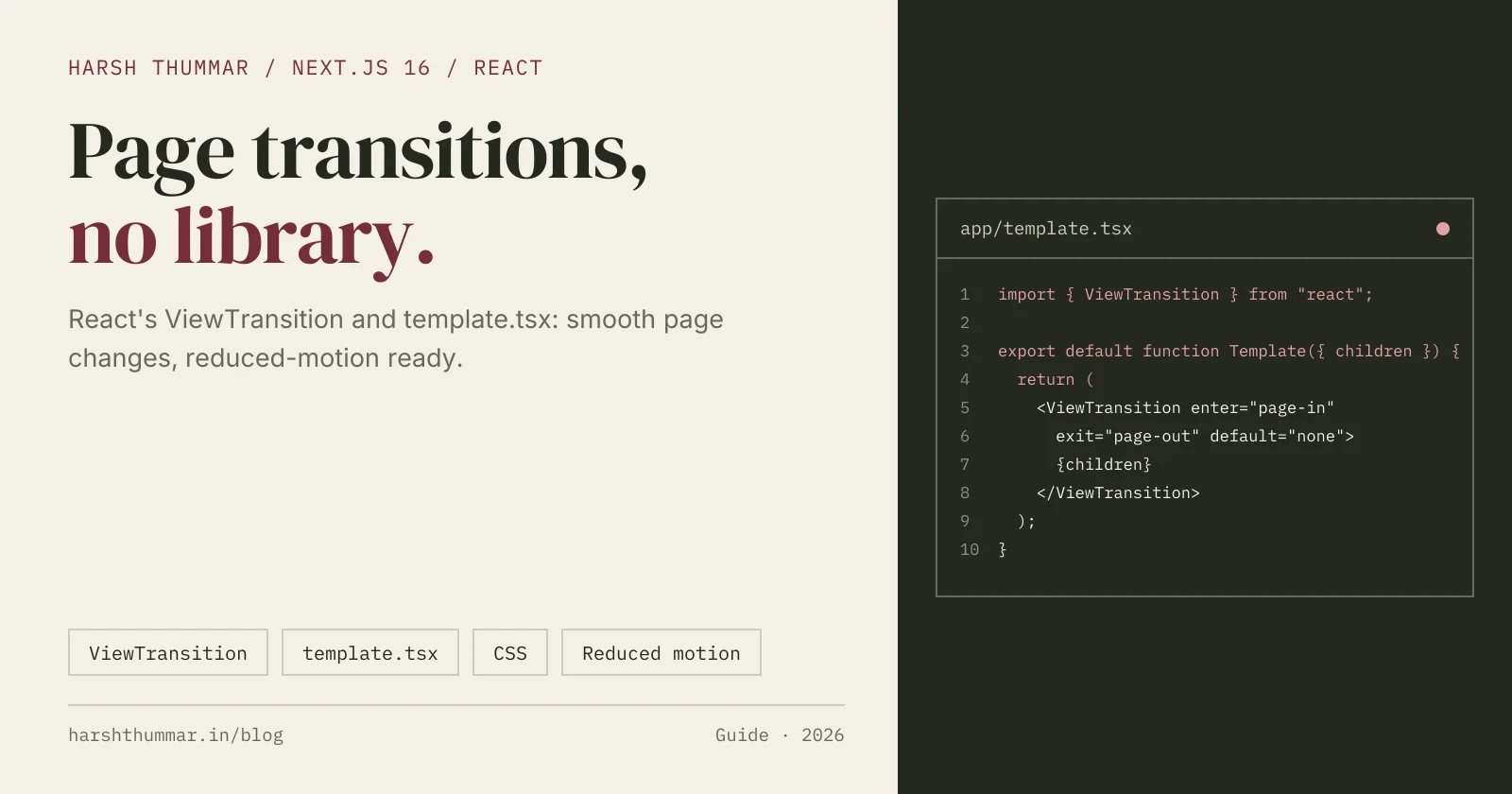
Create app/template.tsx:
import { ViewTransition } from "react";

export default function Template({ children }: { children: React.ReactNode }) {
  return (
    <ViewTransition enter="page-in" exit="page-out" default="none">
      {children}
    </ViewTransition>
  );
}
Next.js renders a template between a layout and its children. On my site the root layout holds the header and footer, and the template wraps only the page content. That gives the effect I wanted: the header and footer stay still while the content changes.
// app/layout.tsx (simplified)
export default function RootLayout({ children }: { children: React.ReactNode }) {
  return (
    <html lang="en">
      <body>
        <Header />
        {children} {/* app/template.tsx wraps each page here */}
        <Footer />
      </body>
    </html>
  );
}
Step 2: Write the Animations in CSS
The enter and exit values become classes on the view transition pseudo-elements. Target them in your global CSS:
/* The old page fades out quickly, the new one fades up. */
::view-transition-old(.page-out) {
  animation: 140ms ease-in both page-fade-out;
}

::view-transition-new(.page-in) {
  animation: 280ms cubic-bezier(0.2, 0, 0, 1) 60ms both page-fade-in;
}

@keyframes page-fade-out {
  to {
    opacity: 0;
  }
}

@keyframes page-fade-in {
  from {
    opacity: 0;
    transform: translateY(12px);
  }
}
A few choices here are deliberate:
- The exit is shorter than the enter. People care about the new page, so the old one gets out of the way fast.
- The enter starts 60ms late. That small gap stops the two pages from looking blended.
- Only 12px of movement. It's enough to feel smooth, and small enough not to feel like a slide show.
Keep the whole transition under about 400ms. Longer transitions start to feel like waiting.
Step 3: Respect Reduced Motion
Some visitors turn on "reduce motion" in their operating system because animation makes them feel unwell. Turn the transition off for them:
@media (prefers-reduced-motion: reduce) {
  ::view-transition-old(*),
  ::view-transition-new(*),
  ::view-transition-group(*) {
    animation-duration: 0s !important;
    animation-delay: 0s !important;
  }
}
With this in place, pages swap instantly for those visitors, which is exactly how the browser behaves without view transitions.
Step 4 (Optional): Directional Slides With transitionTypes
A fade works for every link. If you want direction, for example sliding forward into an article and back out to a list, use the transitionTypes prop on <Link>:
import Link from "next/link";

<Link href={`/blog/${post.slug}`} transitionTypes={["nav-forward"]}>
  {post.title}
</Link>
Then map those types to animations:
<ViewTransition
  enter={{ "nav-forward": "nav-forward", "nav-back": "nav-back", default: "none" }}
  exit={{ "nav-forward": "nav-forward", "nav-back": "nav-back", default: "none" }}
  default="none"
>
  {children}
</ViewTransition>
The default: "none" entries matter. Browser back and forward buttons don't carry your types, so without them those navigations would play the wrong animation. For a portfolio or blog I'd start with the simple fade from Step 2 and only add direction if your site has a clear "deeper" and "back" structure.
How I Tested It
Transitions are easy to get "almost right", so I tested mine in a real browser instead of trusting my eyes. The trick is to wrap the browser's startViewTransition method before the page loads, so you can count how often it runs:
// Runs before the page's own scripts (for example via a test tool)
window.__vt = 0;
const original = document.startViewTransition?.bind(document);
if (original) {
  document.startViewTransition = (...args) => {
    window.__vt++;
    return original(...args);
  };
}
Then I clicked a menu link and checked four things:
window.__vtwent up, so a real view transition ran.- The header element was the same DOM node before and after, so it wasn't remounted.
- The new page started at the top (
scrollY === 0). - The browser Back button still worked.
All four passed, with no console errors.
Browser Support
React's integration uses newer View Transitions features, such as transition types and view-transition-class. The Next.js docs list support in Chromium 125+ and recent Safari and Firefox versions, and note that some animations may behave differently in Safari.
The important part is the fallback: without support, nothing breaks. The navigation just happens instantly. That makes view transitions a safe progressive enhancement.
Common Mistakes
- Wrapping children in layout.tsx. Layouts don't remount, so nothing animates. Use
template.tsx. - Forgetting default="none". Without it, the wrapper can animate on unrelated updates, such as a Suspense boundary resolving.
- Animating the header. Keep shared navigation in the layout, outside the template, so it stays still.
- Long durations. Anything much over 400ms makes the site feel slower, not smoother.
- Expecting setState to trigger it. Only Transitions, Suspense reveals and
useDeferredValueactivate<ViewTransition>. - Skipping reduced motion. It's three lines of CSS, so always add it.
Next.js Page Transitions Checklist
app/template.tsxwraps children in<ViewTransition>- Header and footer live in
app/layout.tsx, outside the template enter,exitanddefault="none"set on the wrapper- CSS targets
::view-transition-old(.page-out)and::view-transition-new(.page-in) - Exit shorter than enter; total under about 400ms
prefers-reduced-motionturns animation off- Tested: a transition runs, the header doesn't remount, the new page starts at the top
- Back and forward buttons still work
My Recommendation
Start with a single fade in template.tsx. It's the smallest change with the biggest effect, it costs almost nothing in performance, and it degrades gracefully. Add directional slides or shared-element morphs later, once you know which pages actually benefit from them.
Related Next.js Guides
- How to Build a Ctrl+K Site Search in Next.js 16 →Another small feature that adds polish without adding load.
- Next.js 16 Performance Optimization →Keep pages fast while you add polish like transitions.
- Next.js Mobile PageSpeed 60 to 90+ →How I improved Core Web Vitals on a real Next.js site.
- React Server Components Explained →How server and client components fit together in the App Router.
- Tailwind CSS v4 Design System →Design tokens that keep animations and colours consistent.
Frequently Asked Questions
How do I add page transitions in Next.js 16?
Create app/template.tsx and wrap its children in React's <ViewTransition> with enter, exit and default="none" props. Then style the matching ::view-transition-old and ::view-transition-new pseudo-elements in your CSS.
Why doesn't ViewTransition work in my layout.tsx?
Layouts persist across navigations and never unmount, so enter and exit animations never fire. Templates remount on every navigation, which is why the wrapper belongs in template.tsx.
Do I need Framer Motion for page transitions in Next.js?
No. React's <ViewTransition> and the browser's View Transitions API handle page transitions without an animation library, and the App Router needs no extra configuration.
What happens in browsers that don't support view transitions?
The page changes instantly, exactly as it would without any transition code. Nothing breaks, so it's a safe progressive enhancement.
How do I disable view transitions for reduced motion?
Add a prefers-reduced-motion: reduce media query that sets animation-duration: 0s on ::view-transition-old(*), ::view-transition-new(*) and ::view-transition-group(*).
Conclusion
Smooth page transitions used to mean an animation library and careful mount and unmount handling. In Next.js 16 it's a template.tsx file, a few lines of CSS and a reduced-motion rule.
Put the wrapper in a template, not a layout, keep the animation short, and test that a real transition runs. Your visitors get a site that feels polished, and your performance budget barely notices.